> For the complete documentation index, see [llms.txt](https://docs.theconfigteam.com/llms.txt). Markdown versions of documentation pages are available by appending `.md` to page URLs; this page is available as [Markdown](https://docs.theconfigteam.com/prebilt-ewm/installation/neptune-installation/backend-installation.md).
# Backend installation
{% hint style="info" %}
**Prerequisite**
This section assumes a certain familiarity with ABAP Development.
{% endhint %}
## Activate flow BAdIs
{% hint style="info" %}
**Note**\
Any pre-existing customer implementation should be moved in to a new BAdI implementation for BAdI `/TCTM/EX_EWM_RF_FLOW_POST` (same interface as the SAP standard one, so existing customer class can be reused).
{% endhint %}
Create BAdI implementation for `/SCWM/EX_RF_FLOW_POST` and `/SCWM/EX_RF_FLOW_PRE` with class `/TCTM/EWM_FLOW_BADIS`.
In transaction SE80, create an implementation under the agreed package name.
Populate the agreed fields and click 'Continue'.
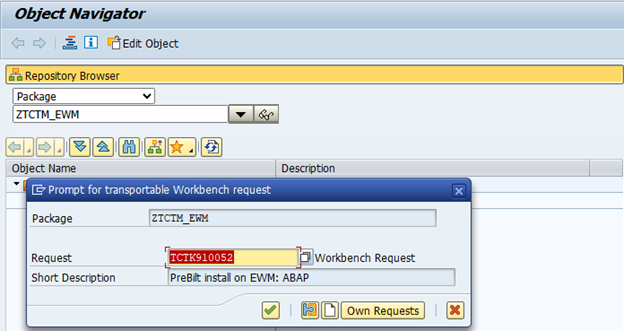
Assign the implementation to a transport.
## Activate the implementation
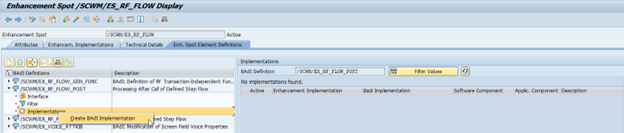
In transaction *SE18*, enter the BAdI name /SCWM/EX\_RF\_FLOW\_POST and click 'Display'.
In the /SCWM/EX\_RF\_FLOW\_POST BAdI definition, right click 'Implementations' -> 'Create BAdI Implementation'.
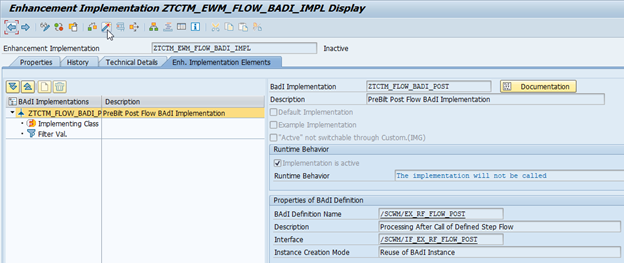
Enter the Enhancement Implementation ZTCTM\_EWM\_FLOW\_BAdI\_IMPL and the Short Text TCT PreBilt Post Flow BAdI Implementation and click the green tick.
On the next screen, enter the package ZTCTM\_EWM and click 'Save'.
Save the implementation to a transport and enter the following details to create another BAdI implementation:
* BAdI implementation: ZTCTM\_FLOW\_BAdI\_POST
* Description: PreBilt Post Flow BAdI Implementation
* Implementing class: /TCTM/EWM\_FLOW\_BADIS
Press the green tick and click on the 'Initialize Entries' wand icon.
The BAdI is now activated. Click the 'Back' button to return to the Enhancement Spot screen.
In the /SCWM/EX\_RF\_FLOW\_PRE BAdI definition, right click 'Implementations' -> 'Create BAdI Implementation'.
Select the enhancement implementation and click the green tick.
Enter the following details to create another BAdI implementation:
* BAdI implementation: ZTCTM\_FLOW\_BAdI\_PRE
* Description: PreBilt Pre Flow BAdI Implementation
* Implementing class: /TCTM/EWM\_FLOW\_BADIS
Press the green tick and click on the 'Initialize Entries' wand icon.
The BAdI is now activated.
## Activate the RFUI BAdI
In transaction *SE18*, enter the BAdI name /TCTC/EX\_EWM\_RFUI\_GET\_MANAGER and click 'Display'.
In the /TCTC/EX\_EWM\_RFUI\_GET\_MANAGER BAdI definition, right click 'Implementations' -> 'Create BAdI Implementation'.
Enter the following details to create another BAdI implementation:
* BAdI implementation: ZTCTM\_BAdI\_RFUI
* Description: PreBilt RFUI Manager BAdI Implementation
* Implementing class: blank
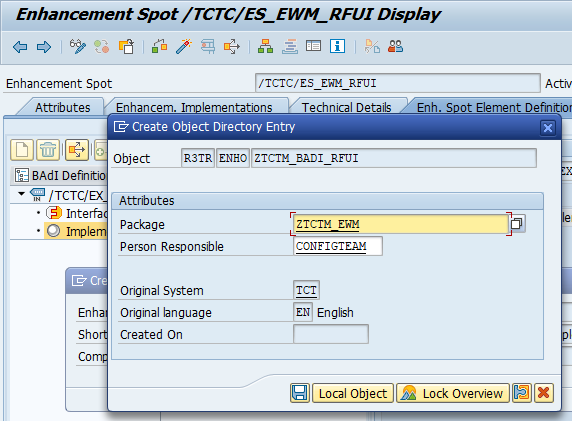
Press the green tick and save the object to package ZTCTM\_EWM.
Save to the transport and click the green tick.
On the next screen, enter the following details to create another BAdI implementation:
* BAdI implementation: ZTCTM\_BAdI\_RFUI
* Description: PreBilt RFUI Manager BAdI Implementation
* Implementing class: /TCTM/EWM\_MANAGER
Press the green tick and click on the 'Initialize Entries' wand icon.
The BAdI is now activated.
## Create the ITS service
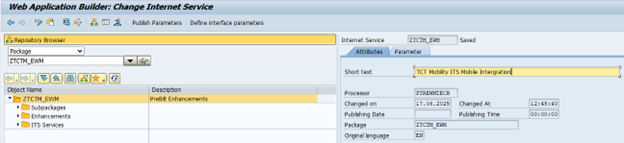
In transaction *SE80*, under the created package, create service ZTCTM\_EWM. Right click on the object and select 'Create' -> 'Other (1)' -> Internet Service.
In the pop-up screen, enter the details:
* Internet Service: ZTCTM\_EWM
* Transaction Code: /SCWM/RFUI
Save the package and the transport.
Enter the description TCT Mobility ITS Mobile Intergration in the short text field and click 'Save'.
{% hint style="info" %}
**Note**
If your naming conventions require a different name, ensure the ICF node in /tctm\_ewm/its is copied and adjusted to the correct name.
In this case, also change *deploy.conf* for the front-end to point to the copied ICF node (see section *Frontend Deployment*).
{% endhint %}
## Publish the service
Expand the ITS Service Node, right-click on the ZTCTM\_EWM Folder and click 'Publish' -> 'Complete Service' to publish the service.
## Activate SICF nodes
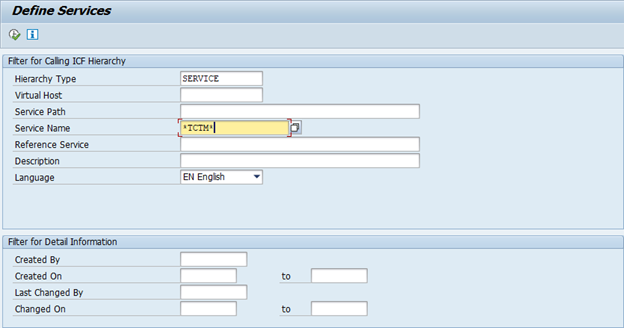
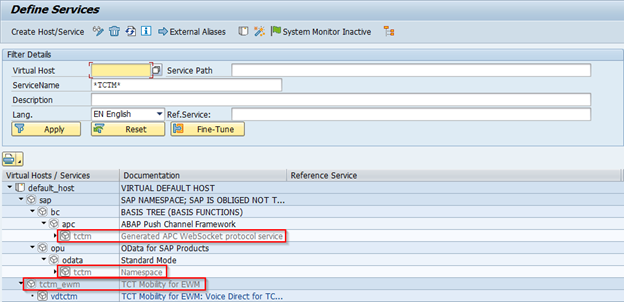
In transaction *SICF*, search for all TCTM nodes.
Activate all them (including sub-nodes) by right clicking the service and clicking 'Activate Service'. When prompted to confirm, use the 'Yes including subnodes' button.
## Create the EWM RF application parameter
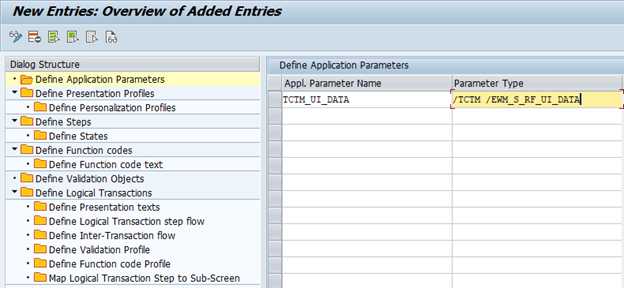
In transaction *SPRO* under the EWM customizing node `SCM Extended Warehouse Management > Extended Warehouse Management > Mobile Data Entry > Radio Frequency (RF) Framework > Define Steps in Logical Transactions` , click 'New Entries' in the Define Application Parameters structure.
Create a new RF Application Parameter:
* Appl. Parameter Name: TCTM\_UI\_DATA
* Parameter Type: /TCTM/EWM\_S\_RF\_UI\_DATA
Click 'Save'.
{% hint style="info" %}
**Note**
If you receive a namespace error, press Enter.
{% endhint %}
Assign the new entry to a transport.
## Copy TCTM function group to the agreed namespace
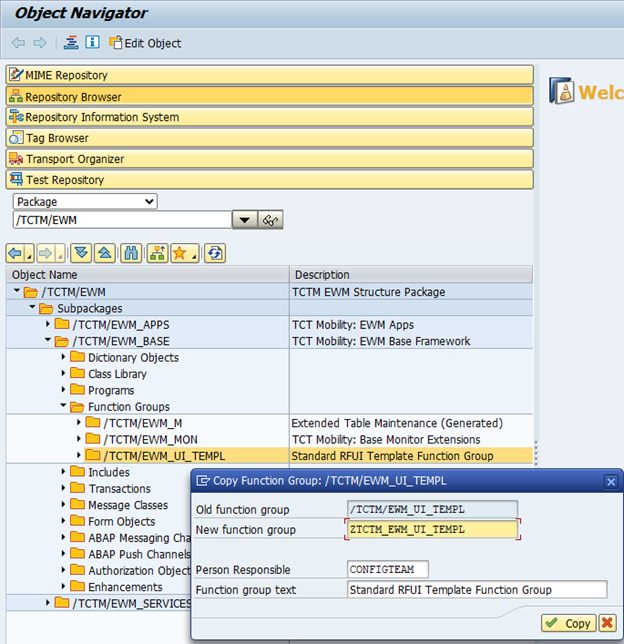
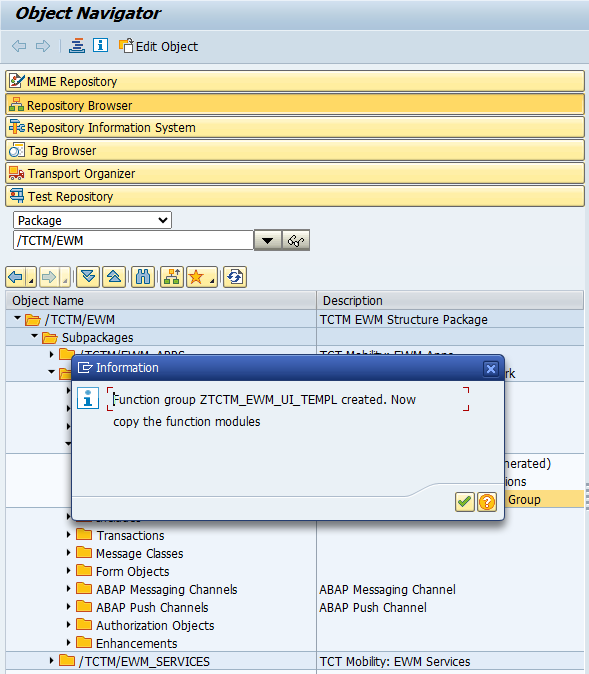
In transaction *SE80*, expand the root to Function Groups, right click and copy /TCTM/EWM\_UI\_TEMPL. Enter the new function group name. For example:
Assign to the `ztctm_ewm` package, and then assign to a transport.
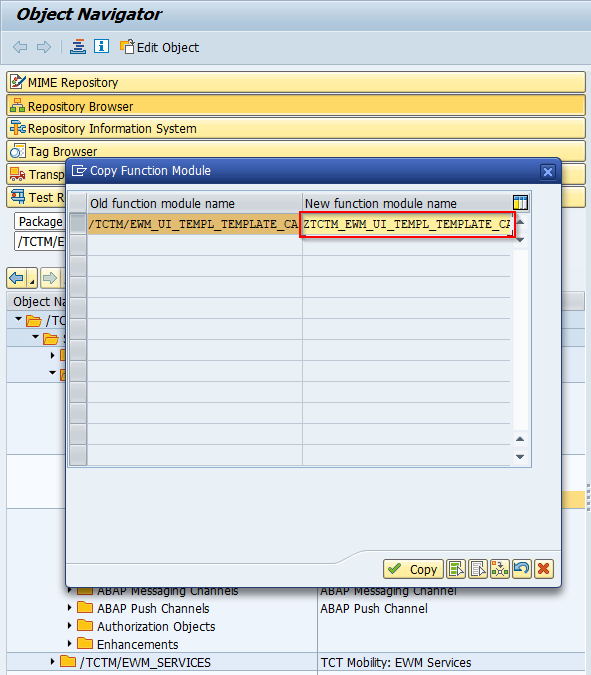
On the next pop-up, click the green tick to copy the function module.
Enter the new function group name and click 'Copy'.
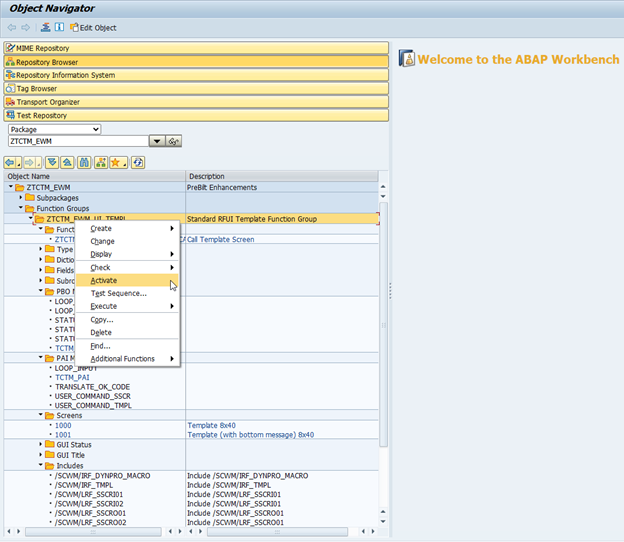
Search for the new package, right click on the new function group and click 'Activate'.
Click the green tick on the pop-up.
You should see a green success message that the object has been activated.
## Create a display profile
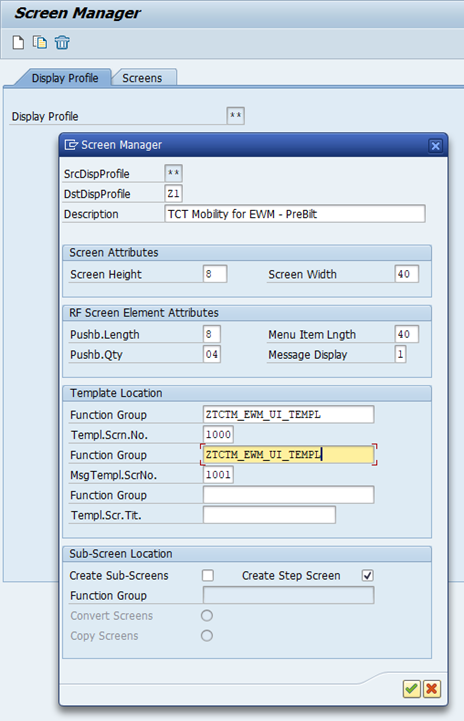
To use PreBilt for EWM and customise screen appearances, you first need to create a new Display Profile in the standard RF framework. It's recommended to have separate Display Profiles for devices with differing screen sizes or layouts (e.g., handheld, vehicle-mounted, tablet) to allow when configuring the appearance of screens using the PreBilt customising toolkit.
Create one display profile per device type which will use PreBilt for EWM.
In transaction *SPRO* under the EWM customizing node `Mobile Data Entry > Radio Frequency (RF) Framework > RF Screen Manager`:
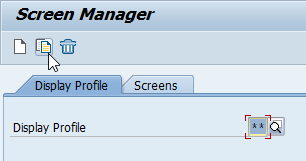
Copy the standard \*\* display profile.
Assign to a transport and click the green tick.
{% hint style="danger" %}
**IMPORTANT**
The next step is critical, and details should be completed exactly as provided.
{% endhint %}
{% hint style="info" %}
**Note**\
Use the Display Profile name and function group as obtained when working through this guide.
{% endhint %}
When prompted by the Screen Manager, click 'Yes'.
## Generate ITS templates
{% hint style="info" %}
Note
In the below section, you will need to adjust the service names given in the instructions and screenshots if it has been changed, and use the display profile name created above.
{% endhint %}
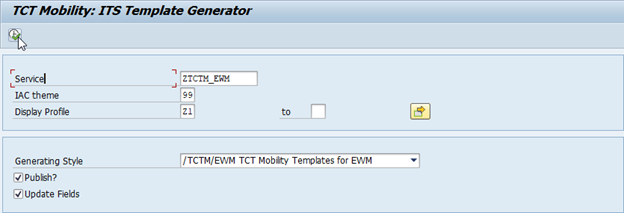
In transaction /TCTM/EWMITSTEMPGEN, enter:
* Service: ZTCTM\_EWM
* IAC theme: 99
* Display profile: Z1
* Generating Style: /TCTM/EWM TCT Mobility Templates for EWM
* Publish?: Checked
* Update Fields: Checked **on the first run ONLY**. After that, unchecked.
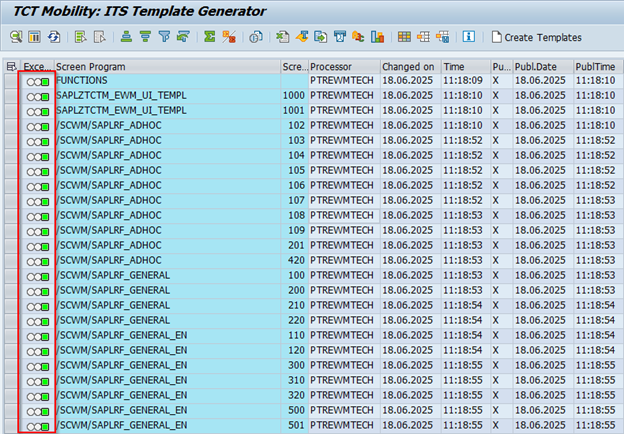
From the next screen, select all the screens displayed and click 'Create Templates'.
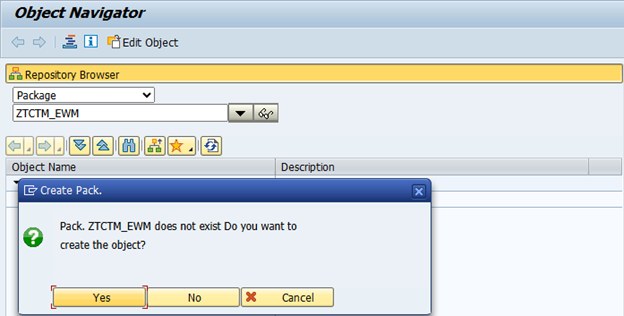
Add the package name ZTCTM\_EWM when prompted and click the green tick, before assigning to a transport.
The templates should have been activated as indicated by a green status light.

 {% endhint %}
## Publish the service
Expand the ITS Service Node, right-click on the ZTCTM\_EWM Folder and click 'Publish' -> 'Complete Service' to publish the service.
## Activate SICF nodes
In transaction *SICF*, search for all TCTM nodes.
{% endhint %}
## Publish the service
Expand the ITS Service Node, right-click on the ZTCTM\_EWM Folder and click 'Publish' -> 'Complete Service' to publish the service.
## Activate SICF nodes
In transaction *SICF*, search for all TCTM nodes.