
| Configuration element | Available structures/fields |
|---|---|
| SELECT_OPTS | PI_DOC_NO or IBLNR* – IM inventory document number PI_ITEM or ZEILI* – item number of the count document MATERIAL or MATNR* – SAP material number BATCH or CHARG* – SAP batch number PI_DATE or PDATU* – planned count date PLANT or WERKS* – plant STORE_LOC or LGORT* – storage location FISCAL or GJAHR* – fiscal year of the inventory document PI_NO or INVNU* – grouping number assigned to the inventory document PI_REF or XBLNI* - optional reference number assigned to the inventory document STATUS_IM or ZSTAT* - overall count status of the inventory document SPEC_STOCK – special stock type SPEC_STOCK_NUMBER – special stock number *technical field names are only available as of release 5.8.0. |
| SELECT_OPTS_ACTIONS | BACK - back to previous screen. CLEAR_INPUT - clear all input fields. VAR_CHOOSE – select from saved variants. VAR_SAVE – save the selection entries as a variant. SELECT – proceed to next screen. |
| Configuration element | Available structures (prefix) |
|---|---|
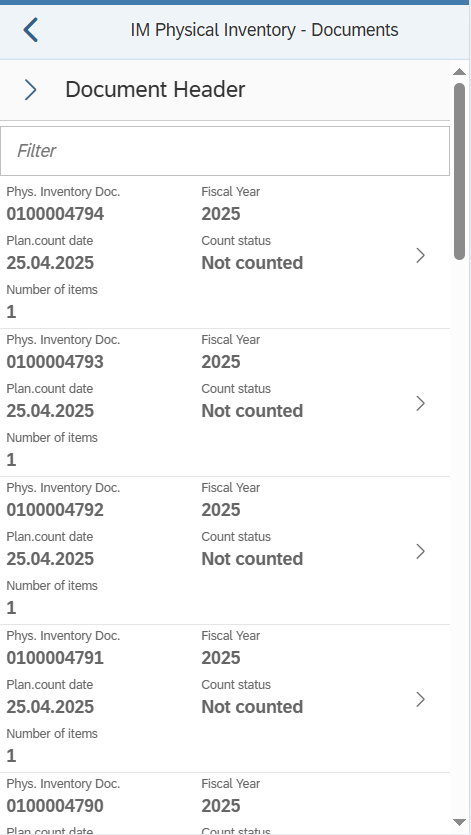
| LIST_PI_DOCS | Primary: /TCTM/IKPF (IKPF) Secondary: None |
| LIST_PI_DOCS_ACTIONS | BACK - back to previous screen. |
| LIST_PI_DOCS_HEADER | Primary: /TCTM/IKPF (IKPF) Secondary: None |
| LIST_PI_DOCS_HEADER_EX | n/a |
| LIST_PI_DOC_SORT | Primary: /TCTM/IKPF |

| Configuration element | Available structures (prefix) |
|---|---|
| LIST_PI_ITEM | Primary: /TCTM/ISEG (ISEG) Secondary: /TCTM/IKPF (IKPF), /TCTM/MAKT (MAKT), /TCTM/MARA (MARA), /TCTM/MARC (MARC), /TCTM/MARD (MARD) |
| LIST_PI_ITEM_ACTIONS | BACK - back to previous screen. SAVE – clear PI document. |
| LIST_PI_ITEM_HEADER | Primary: /TCTM/ISEG (ISEG) Secondary: /TCTM/IKPF (IKPF), /TCTM/MAKT (MAKT), /TCTM/MARA (MARA), /TCTM/MARC (MARC), /TCTM/MARD (MARD) |
| LIST_PI_ITEM_HEADER_EX | n/a |
| LIST_PI_ITEM_SORT | Primary: /TCTM/ISEG As of release 5.8.0: |

| Configuration element | Available structures (prefix) |
|---|---|
| INPUT_COUNT | Primary: /TCTM/ISEG (ISEG) Secondary: /TCTM/IKPF (IKPF), /TCTM/MAKT (MAKT), /TCTM/MARA (MARA), /TCTM/MARC (MARC), /TCTM/MARD (MARD) |
| INPUT_COUNT_ACTIONS | BACK - back to previous screen. CLEAR_INPUT - clear all input fields. SAVE – enter count. |
| Configuration element | Description |
|---|---|
| FE_APP | Frontend class to use in running the transaction. Reference to the platform specific frontend application that should be used to run the transaction. Included in the App Master Data file supplied for setting up the initial transactions. |
| MODE | Configure whether the app is used for IM stock or WM stock. |
| PI_EVENT_TYPES | Physical inventory event type list. |
| MATERIAL_SEARCH_SEQ | Defines the search sequence for materials and the relevant conversion exits. Valid Values: M – Material D – Description E – EAN code (the EAN code for any unit of measure in the material master) B – Storage Bin (Plant/Data Stor 1 view of material master) |
| UOM_CONVERSION | You can identify and setup the quantity and the UOM fields that should be converted to the alternative UOM. |
| UOM_SEQ | You can create an app transaction specific sequence of UOM types that is different from the global default. |
| SERIAL_OVERRIDE | Serialisation Overrides. For more information, go here. |
| SH_PARAMS_1 | Search Help Parameter Map. |
| CALL_TRANSACTION | Defines transactions that can be called from this app automatically. |
| SUPPRESS_SUCCESS | Allows success messages to be suppressed. If toggle = ON, success messages are suppressed. If toggle = OFF, success messages are not suppressed. |
| LOCK_LEVEL | Configure app to lock delivery data during processing at either the header level or item level. Valid values: ‘HEADER’ will lock the delivery when selecting directly from the selection screen, or from the ‘List OBD’ screen. ‘ITEM’ will lock the delivery item when selecting an item from the delivery list, this will enable multiple users to pick the same delivery simultaneously. |
| ALLOW_CREATE | Allow PI document creation. If toggle = ON a physical inventory document can be created. Relevant for ad hoc physical inventory counting – IM & WM. If toggle = OFF a physical inventory document cannot be created. Relevant for Planned physical inventory counting – IM & WM. PI documents need to be created in the SAP GUI or via the ad hoc transactions. |
| ALLOW_COUNT | Allow PI document count. If toggle = ON a physical inventory document can be counted. If toggle = OFF a physical inventory document cannot be counted. |
| ALLOW_CANCEL | Allow PI document cancel. If toggle = ON a physical inventory document can be cancelled. Relevant for ad hoc physical inventory counting – IM & WM where ALLOW_CREATE = ON. If toggle = OFF a physical inventory document cannot be cancelled. Relevant for planned physical inventory counting – IM & WM. |
| CONFIRM_COUNT | Configure whether there is a pop-up message to confirm the count. X - Always D – Differences only Blank – Never |
| SYS_GUIDE_PI_DOC | If set to blank, the user selects a document from the PI Doc List. The next screen is either the PI Item List (for IM) or Storage Bin List (for WM), if the document has multiple lines, or the count screen if it only has one. After counting, even if items remain, the user returns to the PI Doc List to select the next (or same) document. If set to A, the same list is generated, but the top document (based on LIST_PI_DOC_SORT) is auto-selected and passed to the next screen. The list is skipped. If set to B, all documents are auto-selected and passed to the next screen. The list is skipped, and sort order doesn’t apply. If set to C, the user selects a document as with blank. If it has multiple items, the system cycles through each one until the document is fully counted, then returns to the list. |
| SYS_GUIDE_PI_ITEM | Determines the logic flow of the app. If toggle = ON, the same list of physical inventory items would be generated as if the value was toggle = OFF, but the user will not be presented with the list screen. Instead, the top physical inventory item from the list will be automatically selected and passed to the next screen; the ‘Input Count’ screen. The sort of the list, and therefore the way to control which physical inventory item is selected for the user, is determined by the sort order defined in LIST_PI_ITEM_SORT. If toggle = OFF, the LIST_PI_ITEM screen is displayed, and the user selects a physical inventory document item to count from the item list. |
| PLANT_FILTER | Enables filtering of plants assigned to the warehouse, allowing you to include or exclude specific values in the list view. |
| SLOC_FILTER | This is a possible filter element that can be used, as required, to allow filtering of the storage locations (if these need to be restricted to a subset of locations that are allocated to the PreBilt warehouse). It has been created as an example and can be used or changed as required. It must be used in conjunction with a suitable field class assigned to the field. |
| UOM_FILTER | Enables filtering of unit of measure, allowing the user to include or exclude specific values in the list view. |
| STATUS_FILTER | Allows filtering of stock type in IM or stock category in WM. |
| PI_INV_STATUS_FILTER | Allows filtering of inventory status. If further filtering of the status the user can see needs to be filtered further, the allowed values can be set here. |
| APP_TEXTS | Defines standard app text to be used in screen headers, buttons etc. |
| TRANS_INFO | Information about the transaction. |

| Configuration element | Available structures/fields |
|---|---|
| SELECT_OPTS | PI_DOC_NO or IBLNR* – IM inventory document number PI_ITEM or ZEILI* – item number of the count document MATERIAL or MATNR* – SAP material number BATCH or CHARG* – SAP batch number PI_DATE or PDATU* – planned count date PLANT or WERKS* – plant STORE_LOC or LGORT* – storage location FISCAL or GJAHR* – fiscal year of the inventory document PI_NO or INVNU* – grouping number assigned to the inventory document PI_REF or XBLNI* - optional reference number assigned to the inventory document STATUS_IM or ZSTAT* - overall count status of the inventory document SPEC_STOCK – special stock type SPEC_STOCK_NUMBER – special stock number *technical field names are only available as of release 5.8.0. |
| SELECT_OPTS_ACTIONS | BACK - back to previous screen. CLEAR_INPUT - clear all input fields. VAR_CHOOSE – select from saved variants. VAR_SAVE – save the selection entries as a variant. SELECT – proceed to next screen. |

| Configuration element | Available structures (prefix) |
|---|---|
| LIST_PI_DOCS | Primary: /TCTM/IKPF (IKPF) Secondary: None |
| LIST_PI_DOCS_ACTIONS | BACK - back to previous screen. SAVE – clear PI document. |
| LIST_PI_DOCS_HEADER | Primary: /TCTM/IKPF (IKPF) Secondary: None |
| LIST_PI_DOCS_HEADER_EX | n/a |
| LIST_PI_DOC_SORT | Primary: /TCTM/IKPF |
| Configuration element | Available structures (prefix) |
|---|---|
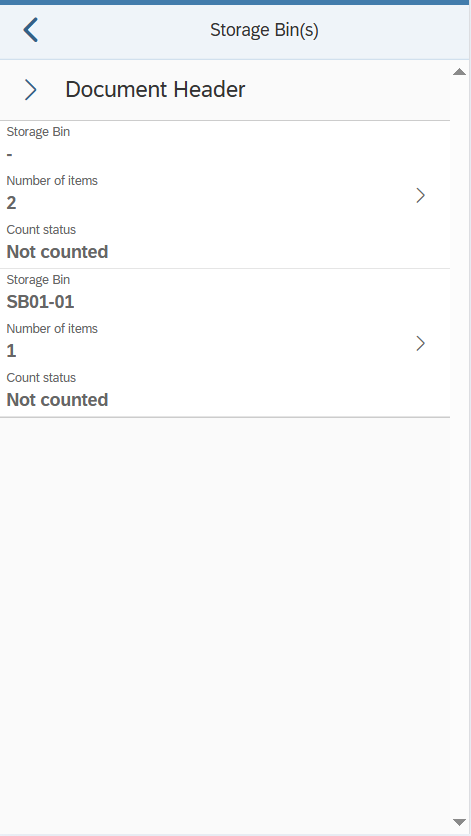
| LIST_IMB_BIN | Primary: /TCTM/IMB_LAGP (LAGP) Secondary: /TCTM/IKPF (IKPF) |
| LIST_IMB_BIN_ACTIONS | BACK - back to previous screen. |
| LIST_IMB_BIN_HEADER | Primary: /TCTM/IMB_LAGP (LAGP) Secondary: /TCTM/IKPF (IKPF) |
| LIST_IMB_BIN_HEADER_EX | n/a |
| LIST_IMB_BIN_SORT | Primary: /TCTM/IMB_LAGP |

| Configuration element | Available structures (prefix) |
|---|---|
| LIST_IMB_ITEM | Primary: /TCTM/IMB_LAGP (LAGP) Secondary: /TCTM/IKPF (IKPF), /TCTM/ISEG (ISEG), /TCTM/MAKT (MAKT), /TCTM/MARA (MARA), /TCTM/MARC (MARC), /TCTM/MARD (MARD) |
| LIST_IMB_ITEM_ACTIONS | BACK - back to previous screen. |
| LIST_IMB_ITEM_HEADER | Primary: /TCTM/IMB_LAGP (LAGP) Secondary: /TCTM/IKPF (IKPF), /TCTM/ISEG (ISEG), /TCTM/MAKT (MAKT), /TCTM/MARA (MARA), /TCTM/MARC (MARC), /TCTM/MARD (MARD) |
| LIST_IMB_ITEM_HEADER_EX | n/a |
| LIST_IMB_ITEM_SORT | Primary: /TCTM/ISEG |

| Configuration element | Available structures (prefix) |
|---|---|
| INPUT_COUNT | Primary: /TCTM/ISEG (ISEG) Secondary: /TCTM/IKPF (IKPF), /TCTM/MAKT (MAKT), /TCTM/MARA (MARA), /TCTM/MARC (MARC), /TCTM/MARD (MARD), /TCTM/IMB_LQUA (LQUA), /TCTM/IMB_LAGP (LAGP), MCHB (MCHB) |
| INPUT_COUNT_ACTIONS | BACK - back to previous screen. CLEAR_INPUT - clear all input fields. SAVE – enter count. |
| Configuration element | Description |
|---|---|
| FE_APP | Frontend class to use in running the transaction. Reference to the platform specific frontend application that should be used to run the transaction. Included in the App Master Data file supplied for setting up the initial transactions. |
| MODE | Configure whether the app is used for IM stock or WM stock. |
| PI_EVENT_TYPES | Physical inventory event type list. |
| IM_BIN_COUNT | To enable a count of the number of bins to be included on the PI List. Toggle must be set to ON. |
| PI_RECOUNTS_ALLOWED | Toggle to allow recounts. |
| MATERIAL_SEARCH_SEQ | Defines the search sequence for materials and the relevant conversion exits. Valid Values: M – Material D – Description E – EAN code (the EAN code for any unit of measure in the material master) B – Storage Bin (Plant/Data Stor 1 view of material master) |
| SERIAL_OVERRIDE | Serialisation Overrides. For more information, go here. |
| SH_PARAMS_1 | Search Help Parameter Map. |
| CALL_TRANSACTION | Defines transactions that can be called from this app automatically. |
| SUPPRESS_SUCCESS | Allows success messages to be suppressed. If toggle = ON, success messages are suppressed. If toggle = OFF, success messages are not suppressed. |
| LOCK_LEVEL | Configure app to lock delivery data during processing at either the header level or item level. Valid values: ‘HEADER’ will lock the delivery when selecting directly from the selection screen, or from the ‘List OBD’ screen. ‘ITEM’ will lock the delivery item when selecting an item from the delivery list, this will enable multiple users to pick the same delivery simultaneously. |
| ALLOW_CREATE | Allow PI document creation. If toggle = ON a physical inventory document can be created. Relevant for ad hoc physical inventory counting – IM & WM. If toggle = OFF a physical inventory document cannot be created. Relevant for Planned physical inventory counting – IM & WM. PI documents need to be created in the SAP GUI or via the ad hoc transactions. |
| ALLOW_COUNT | Allow PI document count. If toggle = ON a physical inventory document can be counted. If toggle = OFF a physical inventory document cannot be counted. |
| ALLOW_CANCEL | Allow PI document cancel. If toggle = ON a physical inventory document can be cancelled. Relevant for ad hoc physical inventory counting – IM & WM where ALLOW_CREATE = ON. If toggle = OFF a physical inventory document cannot be cancelled. Relevant for planned physical inventory counting – IM & WM. |
| CONFIRM_COUNT | Configure whether there is a pop-up message to confirm the count. X - Always D – Differences only Blank – Never |
| SYS_GUIDE_PI_DOC | If set to blank, the user selects a document from the PI Doc List. The next screen is either the PI Item List (for IM) or Storage Bin List (for WM), if the document has multiple lines, or the count screen if it only has one. After counting, even if items remain, the user returns to the PI Doc List to select the next (or same) document. If set to A, the same list is generated, but the top document (based on LIST_PI_DOC_SORT) is auto-selected and passed to the next screen. The list is skipped. If set to B, all documents are auto-selected and passed to the next screen. The list is skipped, and sort order doesn’t apply. If set to C, the user selects a document as with blank. If it has multiple items, the system cycles through each one until the document is fully counted, then returns to the list. |
| SYS_GUIDE_IMB_BIN | If set to blank, the user selects an item from the Bin List. The next screen is the Item List (for IMB) if the bin has multiple items, or the count screen if it only has one. After counting, even if items remain, the user returns to the Bin List to select the next (or same) bin. If set to A, the same list is generated, but the top document (based on LIST_IMB_BIN_SORT) is auto-selected and passed to the next screen. The list is skipped. If set to B, all bins are auto-selected and passed to the next screen. The list is skipped, and sort order doesn’t apply. If set to C, the user selects a bin as with blank. If it has multiple items, the system cycles through each one until the bin is fully counted, then returns to the list. |
| SYS_GUIDE_IMB_ITEM | Determines the logic flow of the app. If toggle = ON, the same list of physical inventory items in the bin would be generated as if the value was toggle = OFF, but the user will not be presented with the list screen. Instead, the top physical inventory item from the list will be automatically selected and passed to the next screen; the ‘Input Count’ screen. The sorting of the list, and therefore the way to control which physical inventory item is selected for the user, is determined by the sort order defined in LIST_IMB_ITEM_SORT. If toggle = OFF, the LIST_IMB_ITEM screen is displayed, and the user selects a physical inventory document item to count from the item list. |
| PLANT_FILTER | Enables filtering of plants assigned to the warehouse, allowing you to include or exclude specific values in the list view. |
| SLOC_FILTER | This is a possible filter element that can be used, as required, to allow filtering of the storage locations (if these need to be restricted to a subset of locations that are allocated to the PreBilt warehouse). It has been created as an example and can be used or changed as required. It must be used in conjunction with a suitable field class assigned to the field. |
| UOM_FILTER | Enables filtering of unit of measure, allowing the user to include or exclude specific values in the list view. |
| STATUS_FILTER | Allows filtering of stock type in IM or stock category in WM. |
| PI_INV_STATUS_FILTER | Allows filtering of inventory status. If further filtering of the status the user can see needs to be filtered further, the allowed values can be set here. |
| APP_TEXTS | Defines standard app text to be used in screen headers, buttons etc. |
| TRANS_INFO | Information about the transaction. |

| Configuration element | Available structures/fields |
|---|---|
| SELECT_OPTS | PI_DOC_NO or IVNUM* – WM inventory document number MATERIAL or MATNR* – SAP material number BATCH or CHARG* – SAP batch number PI_DATE or PDATU* – planned count date REFERENCE or IRNUM* – optional reference number assigned to the inventory document COUNTER or UNAME* – planned person counting ST_TYPE or LGTYP* – WM storage type ST_BIN or LGPLA* – WM storage bin STATUS or ISTAT* – overall count status of the inventory document SPEC_STOCK – special stock type SPEC_STOCK_NUMBER – special stock number *technical field names available as of release 5.8.0. |
| SELECT_OPTS_ACTIONS | BACK - back to previous screen. CLEAR_INPUT - clear all input fields. VAR_CHOOSE – select from saved variants. VAR_SAVE – save the selection entries as a variant. SELECT – proceed to next screen. |
| Configuration element | Available structures (prefix) |
|---|---|
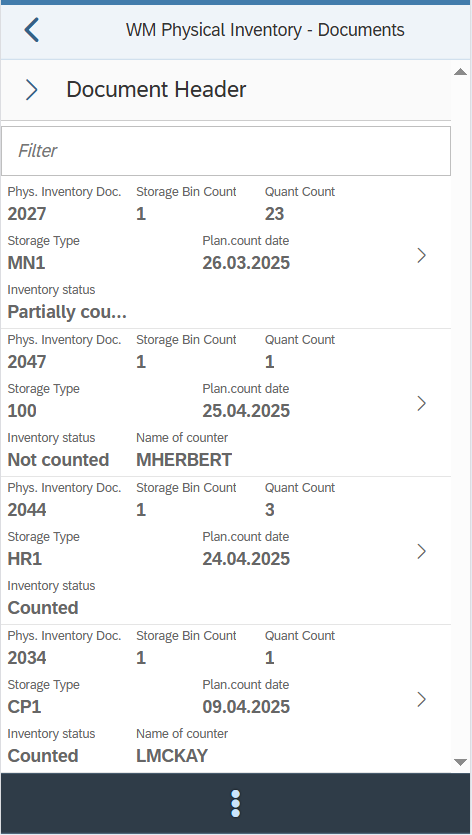
| LIST_PI_DOCS | Primary: /TCTM/LINK (LINK) Secondary: None |
| LIST_PI_DOCS_ACTIONS | BACK - back to previous screen. SAVE – clear count in WM. |
| LIST_PI_DOCS_HEADER | Primary: /TCTM/LINK (LINK) Secondary: None |
| LIST_PI_DOCS_HEADER_EX | n/a |
| LIST_PI_DOC_SORT | Primary: /TCTM/LINK |
| Configuration element | Available structures (prefix) |
|---|---|
| LIST_STORAGE_BIN | Primary: /TCTM/LINP_VB (LINP) Secondary: /TCTM/LINK (LINK) |
| LIST_STORAGE_BIN_ACTIONS | BACK - back to previous screen. SAVE – clear count in WM. |
| LIST_STORAGE_BIN_HEADER | Primary: /TCTM/LINP_VB (LINP) Secondary: /TCTM/LINK (LINK) |
| LIST_STORAGE_BIN_HEADER_EX | n/a |
| LIST_STORAGE_BIN_SORT | Primary: /TCTM/LINP_VB |
| Configuration element | Available structures (prefix) |
|---|---|
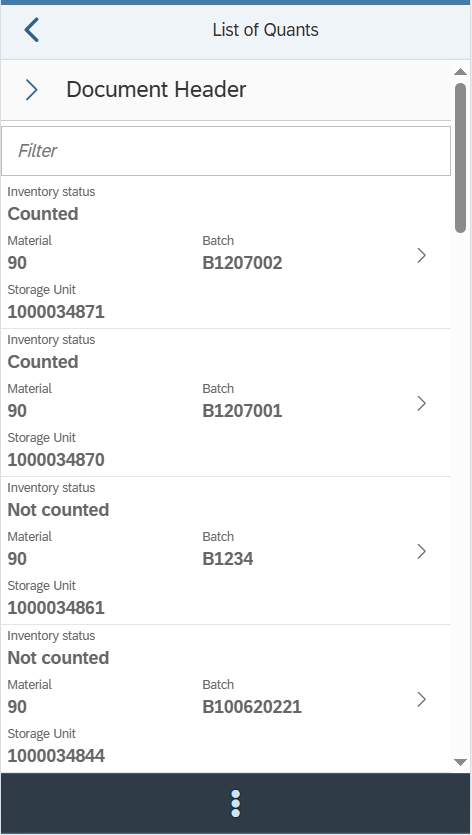
| LIST_QUANT | Primary: /TCTM/LINV_VB (LINV) Secondary: /TCTM/LINK (LINK), /TCTM/LINP_VB (LINP), /TCTM/MAKT (MAKT), /TCTM/MARA (MARA), /TCTM/MARC (MARC), /TCTM/MARD (MARD), /TCTM/MLGN (MLGN) |
| LIST_QUANT_ACTIONS | BACK - back to previous screen. INPUT_NEW_ITEM – add new item into count (action class /TCTM/WM_APP_511_ACTIONS) . SAVE – clear count in WM. |
| LIST_QUANT_HEADER | Primary: /TCTM/LINV_VB (LINV) Secondary: /TCTM/LINK (LINK), /TCTM/LINP_VB (LINP), /TCTM/MAKT (MAKT), /TCTM/MARA (MARA), /TCTM/MARC (MARC), /TCTM/MARD (MARD), /TCTM/MLGN (MLGN) |
| LIST_QUANT_HEADER_EX | n/a |
| LIST_QUANT_SORT | Primary: /TCTM/LINV_VB |

| Configuration element | Available structures (prefix) |
|---|---|
| INPUT_COUNT | Primary: /TCTM/LINV_VB (LINV) Secondary: /TCTM/LINK (LINK), /TCTM/LINP_VB (LINP), /TCTM/MAKT (MAKT), /TCTM/MARA (MARA), /TCTM/MARC (MARC), /TCTM/MARD (MARD), /TCTM/MLGN (MLGN) |
| INPUT_COUNT_ACTIONS | BACK - back to previous screen. CLEAR_INPUT - clear all input fields. INPUT_NEW_ITEM – add new item into count (action class /TCTM/WM_APP_511_ACTIONS). SAVE – enter count. |

| Configuration element | Available structures (prefix) |
|---|---|
| INPUT_NEW_ITEM | Primary: /TCTM/LINK (LINK) Secondary: /TCTM/LINP_VB |
| INPUT_NEW_ITEM_ACTIONS | BACK - back to previous screen. CLEAR_INPUT - clear all input fields. CONTINUE – enter material. |
| Configuration element | Available structures (prefix) |
|---|---|
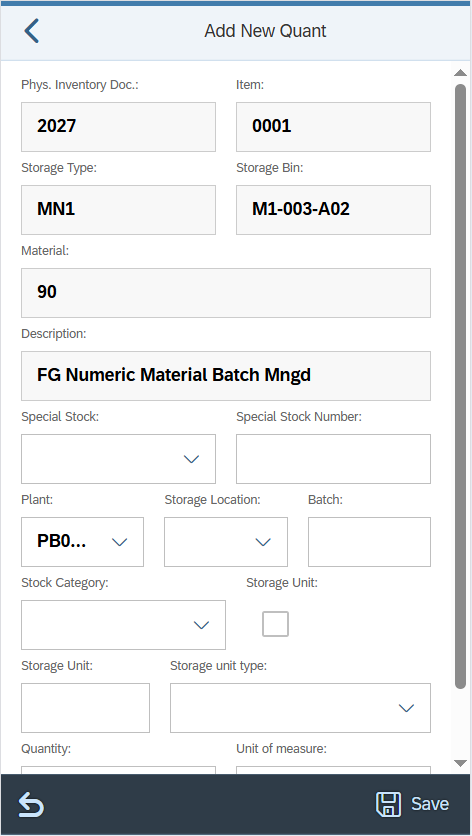
| INPUT_NEW_QUANT | Primary: /TCTM/LINK (LINK) Secondary: /TCTM/LINP_VB (LINP), /TCTM/MAKT (MAKT), /TCTM/MARA (MARA), /TCTM/MLGN (MLGN) |
| INPUT_NEW_QUANT_ACTIONS | BACK - back to previous screen. CLEAR_INPUT - clear all input fields. SAVE – enter count. |
| Configuration element | Descrip |
|---|---|
| FE_APP | Frontend class to use in running the transaction. Reference to the platform specific frontend application that should be used to run the transaction. Included in the App Master Data file supplied for setting up the initial transactions. |
| MODE | Configure whether the app is used for IM stock or WM stock. |
| PI_METHOD_LIST | Allows the PI method to be maintained. When working with the planned process (where ALLOW_COUNT = ON), the values maintained are checked against the PI method maintained against the storage type on the PI document. When working with the Ad Hoc process (where ALLOW_CREATE = ON), the PI method of the relevant storage type, maintained in SAP table T331, is checked with the values maintained in this list to determine whether a physical inventory document can be created. |
| MATERIAL_SEARCH_SEQ | Defines the search sequence for materials and the relevant conversion exits. Valid Values: M – Material D – Description E – EAN code (the EAN code for any unit of measure in the material master) B – Storage Bin (Plant/Data Stor 1 view of material master) |
| SH_PARAMS_1 | Search Help Parameter Map. |
| CALL_TRANSACTION | Defines transactions that can be called from this app automatically. |
| SUPPRESS_SUCCESS | Allows success messages to be suppressed. If toggle = ON, success messages are suppressed. If toggle = OFF, success messages are not suppressed. |
| LOCK_LEVEL | Configure app to lock delivery data during processing at either the header level or item level. Valid values: ‘HEADER’ will lock the delivery when selecting directly from the selection screen, or from the ‘List OBD’ screen. ‘ITEM’ will lock the delivery item when selecting an item from the delivery list, this will enable multiple users to pick the same delivery simultaneously. |
| ALLOW_CREATE | Allow PI document creation. If toggle = ON a physical inventory document can be created. Relevant for ad hoc physical inventory counting – IM & WM. If toggle = OFF a physical inventory document cannot be created. Relevant for Planned physical inventory counting – IM & WM. PI documents need to be created in the SAP GUI or via the ad hoc transactions. |
| ALLOW_COUNT | Allow PI document count. If toggle = ON a physical inventory document can be counted. If toggle = OFF a physical inventory document cannot be counted. |
| ALLOW_CANCEL | Allow PI document cancel. If toggle = ON a physical inventory document can be cancelled. Relevant for ad hoc physical inventory counting – IM & WM where ALLOW_CREATE = ON. If toggle = OFF a physical inventory document cannot be cancelled. Relevant for planned physical inventory counting – IM & WM. |
| CONFIRM_COUNT | Configure whether there is a pop-up message to confirm the count. X - Always D – Differences only Blank – Never |
| SYS_GUIDE_PI_DOC | If set to blank, the user selects a document from the PI Doc List. The next screen is either the PI Item List (for IM) or Storage Bin List (for WM), if the document has multiple lines, or the count screen if it only has one. After counting, even if items remain, the user returns to the PI Doc List to select the next (or same) document. If set to A, the same list is generated, but the top document (based on LIST_PI_DOC_SORT) is auto-selected and passed to the next screen. The list is skipped. If set to B, all documents are auto-selected and passed to the next screen. The list is skipped, and sort order doesn’t apply. If set to C, the user selects a document as with blank. If it has multiple items, the system cycles through each one until the document is fully counted, then returns to the list. |
| SYS_GUIDE_STORAGE_BIN | If set to blank, the user selects a bin from the Storage Bin List. The next screen is either the PI Quant List (if multiple items exist) or the count screen (if only one). After counting, even if items remain, the user returns to the PI Doc List to select the next (or same) document. If set to A, the same list is generated, but the top storage bin (based on LIST_STORAGE_BIN_SORT) is auto-selected and passed to the next screen. The list is skipped. If set to B, all storage bins are auto-selected and passed to the next screen. The list is skipped, and sort order doesn’t apply. If set to C, the user selects a bin as with blank. If it has multiple items, the system cycles through each one until the bin is fully counted, then returns to the document list. |
| SYS_GUIDE_QUANT | Determines the logic flow of the app. If toggle = ON, the same list of physical inventory quants in the storage bin would be generated as if the value was toggle = OFF, but the user will not be presented with the list screen. Instead, the top quant from the list will be automatically selected and passed to the next screen; the ‘Input Count’ screen. The sort of the list, and therefore the way to control which quant is selected for the user, is determined by the sort order defined in LIST_QUANT_SORT. If toggle = OFF, the LIST_PI_QUANT screen is displayed, and the user selects a quant to count from the list. |
| PLANT_FILTER | Enables filtering of plants assigned to the warehouse, allowing you to include or exclude specific values in the list view. |
| SLOC_FILTER | This is a possible filter element that can be used, as required, to allow filtering of the storage locations (if these need to be restricted to a subset of locations that are allocated to the PreBilt warehouse). It has been created as an example and can be used or changed as required. It must be used in conjunction with a suitable field class assigned to the field. |
| UOM_FILTER | Enables filtering of unit of measure, allowing the user to include or exclude specific values in the list view. |
| STATUS_FILTER | Allows filtering of stock type in IM or stock category in WM. |
| SUT_FILTER | Enables filtering of storage unit type, allowing the user to include or exclude specific values in the list view. |
| PI_INV_STATUS_FILTER | Allows filtering of inventory status. If further filtering of the status the user can see needs to be filtered further, the allowed values can be set here. |
| ST_TYPE_FILTER | Enables filtering of storage types assigned to the warehouse, allowing the user to include or exclude specific values in the list view. |
| COUNTER_FILTER | Allows filtering based on document counter. |
| COUNTER_LIST | Allows a static list to be maintained for counter usernames. If a list of usernames the user needs to choose from is needed, the allowed values can be set here. The value and description of the counters are displayed as set up, and unlike a filter option, no validation will take place until the data is submitted to SAP. |
| APP_TEXTS | Defines standard app text to be used in screen headers, buttons etc. |
| TRANS_INFO | Information about the transaction. |