> For the complete documentation index, see [llms.txt](https://docs.theconfigteam.com/llms.txt). Markdown versions of documentation pages are available by appending `.md` to page URLs; this page is available as [Markdown](https://docs.theconfigteam.com/prebilt-for-public-cloud/installation-guide/admin-portal-operational-setup.md).
# Admin Portal operational setup
This page covers the key operational elements of the Admin Portal - those linked to using the PreBilt application on devices.
{% hint style="info" %}
**Note**
Before you can access the portal, your customer or partner account must have been setup and you must have been sent an invitation via email to join your team on the portal.
To access the portal go to [https://admin.prebilt.cloud](https://admin.prebilt.cloud/)
{% endhint %}
## Full functionality of the Admin Portal
To fully maximise the flexibility and features of PreBilt for Public Cloud, in addition to the environment and device setup, you will need to configure some or all of the following elements in the portal.
* Create transactions and set configuration to match the processes in scope.
* Build menus and assign them to organisations or user groups, as required.
* Define organisation profiles for such as specific sites/locations/warehouses to support organisation specific menu assignment and configuration of transactions.
* Extract SAP users to be used for the user groups, if required.
* Assign user groups to the organisation profiles to support specific menu assignments.
* Define devices to be used and, if required, allocate to allowed organisation profiles.
* Apply branding for the colours of fonts and buttons.
## Environments
To access the range of features required to configure PreBilt for use you will need to select an environment from the list of environments created.
### Create environments
Create an environment for each of your SAP instances. Click on the “New Environment” button to create environments.
Enter the following in the popup and click on the “Create Environment” button to save:
* Name – this can be anything you want and you can change it after creation if required.
* ID – this must be unique within your customer space. **It cannot be changed after creation**.
* SAP System Identifier – this is to complete the API URL.
* Toggle to activate the environment that is linked to your SAP "production" environment.
{% hint style="info" %}
**Note**
If you do not have the SAP System Identifier to hand, you can edit and add it to the environment at a later date. Likewise, you can activate the "Production environment" later.
{% endhint %}
### Managing environments
You can edit and sort the environments once they are created, as well as monitoring the SAP system connections.
To sort the environments, you can drag the tiles into whatever order you prefer.
You can edit the name as well as changed or set which environment is marked as "production" by clicking on the edit/pencil icon.
Click on an environment tile to access the Dashboard page.
## Dashboard
To view a summary for each environment, first select an environment and then go to the Dashboard page. This shows the license and connection status; statistics about devices and users; and links to other pages on the portal.
## Users
This page displays the user history for users that have logged into the application. However, it is also used to load all SAP users and their names from the connected SAP system for a particular environment so that they are available for assignment in the User Groups setup if that is required.
In order to extract all the SAP users from the SAP system you need to first configure the communication user and enter the required password in the SAP System page (see [SAP System](#sap-system) section).
Once the communication setup is complete, click on the “Refresh from SAP” button to load all the SAP users into your environment.
The extract from SAP includes the user’s name and so any already “active” or “suspended” users already showing will have their name now displayed.
All other users that have not had any activity in the PreBilt application will be marked as “inactive” and are automatically hidden on this page. However, they will be available for assignment in the User Groups setup.
To display all the users, click on the “Show x users who haven’t logged in” link.
Conversely, to hide the “inactive” user list, you can click on the “Hide users who haven’t logged in” link at the bottom of the list.
## Devices
This page is used to create and display all the devices (which can include desktop computers and laptops).
### Define a device
All devices which will be used to access the PreBilt for Public application, including desktop computers or laptops, will need to be defined in the portal.
{% hint style="info" %}
**Note**
Currently there is no mass upload facility. This will be developed in the future.
{% endhint %}
Make sure you have selected the appropriate environment and then go to the “Devices” page.
Click on the “New Device” button to create. Enter a dedicated Device Name that can uniquely identify each specific device, allocate to "allowed" organisation profiles (*if required to limit access on that device*) and click on “Create Device”.
{% hint style="warning" %}
**Note**
The Device Name cannot be changed after creation.
{% endhint %}
{% hint style="info" %}
**Note**
If organisation profiles are created in the portal, then these will be available for each device to be allocated to "allowed" organisation profiles. The "allowed" organisations will be what the user can select from when they login to the application on the device. Leaving the organiation profile selection blank means that the device can choose any organisation profile during the login process.
{% endhint %}
### Login
After creating the device you can select it for login by clicking on the ellipsis menu for the particular device.
Select the “Login” option.
From there you can access the QR code or the Magic Link for the login process.
## SAP System
To activate the communication setup for SAP please follow the instructions in the [Setup communications](/prebilt-for-public-cloud/installation-guide/minimum-baseline-setup.md#setup-communications) section, or the Setup Guide instructions on the Admin Portal.
Enter the required communications password, if not already saved, and save.
Once the password is saved you can test the connection and if successful then you are ready to load the SAP users into the Users page (see [Users](#users) section).
## Branding
On the Branding page it is possible to update the following:
* App Title - this will be displayed on the login popup prior to signing in.
* App Icon - this will be displayed on the login popup prior to signing in.
* Brand Colours - for both primary and secondary font colours and button colours.
There is an extra branding option available for any non-production environments - you can set up a banner to display on the top line of devices to identify that the user is in a test environment.
Toggle ON the Environment Banner to activate the banner configuration which allows you to edit the text, icon and colours.
## General Config
This page contains some basic configuration options that apply globally to your SAP system and across all the transactions used.
Current options include the following, but these will be updated as and when new features are implemented or old features suspended:
* **Auto Submit** - auto-submit forms when all fields are populated after a scan.
* **Auto Hide Keyboard** - hide the on-screen keyboard when inputs receive focus. Tap a focused input again to show it. Useful for devices with hardware scanners.
* **Bin Search by Verification** – switches on the logic to allow bins to be selected by their SAP bin verification code as well as the bin number itself.
* **Remove Storage Type from Bin Name** – this strips off the storage type prefix if it has been used in the bin naming convention.
* **Demo Mode Available** – enable demo mode functionality in the app.
* **Chat** – not yet active feature.
* **Camera Scanner** – select the platforms on which to enable the camera scanner button.
* **Hardware Button Mappings** – for scanners with physical keyboards and function keys - see below.
* **Show Refresh Config Button** – this is an advanced developer tool and can be activated to show a button in the app menu which will pull the latest config into the application without needing to logout and back in.
* [**Show Device Preview Toggle**](#user-content-fn-1)[^1] – this is an advanced developer tool and can be activated to allow those using PreBilt on a computer screen to switch to a mobile device portrait format as shown below.
### Hardware button mapping
For devices with physical function keys, it is possible to assign those F keys to specific PreBilt actions to add a shortcut.
Current actions supported include:
* **MENU** - this calls up the hamburger menu from any point in the application.
* **SUBMIT** - this allows you to submit the data you have just entered - the equivalent of pressing "enter".
* **BACK** - this navigates back a screen.
* **LOGOUT** - this logs you out of the application.
## Transactions
The Transactions page allows you to see the transactions you have activated and to set the appropriate configuration options per transaction. In addition, if you decide to use Organisation Profiles you can make unique configuration settings per transaction and for specific Organisation Profiles if required.
There are two ways to create transactions:
1. Populate your transaction list with the PreBilt supplied “out-of-the-box” transactions.
2. Create transactions using the “New” transaction button and referencing those supplied in the Transaction Catalogue, which will pull in the appropriate default configuration for each transaction.
For all transactions, regardless of the method of creation, you can then edit, copy or delete as required.
### "Out-of-the-box" transactions
To access the default transactions and be able to edit the default configuration settings you must select/click on “Populate with out-of-the-box transactions” button.
{% hint style="info" %}
**Note**
This feature will NOT be available once any transaction has been created.
{% endhint %}
### Create new transactions
Alternatively, if you want to control the creation of the transactions, you can create a new transaction using the “New” button. You will be prompted to update the transaction with the following:
* Display Name – this can be whatever suits and will be displayed within the application when the users login to PreBilt.
* Transaction ID – this must be unique in the system and cannot be changed after creation. It must be made up of lowercase letters, numbers, hyphens and underscores only. The system proposes a value based on the Display Name but it can be edited as required before saving.
* Transaction Type – this is a pulldown list of the supplied transactions in the Transaction Catalogue and will determine which catalogue transaction this new transaction is based on and therefore which set of default configuration will be made available.
* Display name 2 – this is optional and is only used in the menu navigation tiles in the PreBilt application to give some further information about the transaction.
* Icon – this can be selected from a wide choice of UI5 icons and is again only used in the menu navigation tiles in the PreBilt application.
* Description / Notes – this can be used in the Admin Portal to keep notes about each particular transaction if required.
### Updating transaction configuration
Once a transaction is created you can view and edit, as required, the supplied configuration options for that particular transaction. Each individual transaction, if configuration is applicable, can have different configuration options that can be set.
{% hint style="info" %}
**Note**
It is possible for any particular transaction to make settings that are specific to a particular Organisation Profile – once the Organisation Profiles are created. Activate the “Configure per Profile” setting to do so.
{% endhint %}
### Favourite transactions
It is possible to mark transactions as "Favourite" and, if so, then these will show up in a user's hamburger menu on their device if the transaction exists in the menu they have been assigned.
There is no limit to the number of transactions that can be marked as "Favourite" but keep in mind what will look good on the device. The intention is that certain commonly used transactions may be highlighted for quick access from the hamburger menu rather than navigating through the menu structure.
### Translating transaction names
Transaction names: both the Display Name and Display Name 2, can be translated into the supported languages by clicking on the "globe" icon on the right of the field.
This opens up the popup where you can select "Add a translation".
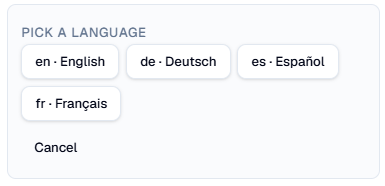
Select your language...
and then enter the appropriate text in the text box.
Close the popup when done and remember to "save" your changes.
### Copying transaction to a new environment
A transaction can at any time be selected to be copied ("pushed") to another environment. Use the "Create a copy" option from the transaction kebab menu.
In the "Duplicate transaction" popup you can specify an alternative environment.

## Menus
PreBilt support two different styles of creating menus which also be mixed and matched:
1. Menus with “folders” to form a hierarchical structure within which to group transactions. “Folders” cannot be referenced directly by another menu.
2. Menus that can be assigned to other menus using the concept of “sub-menus” or building blocks. Editing a “sub-menu” will immediately change it in all the other menus that call it.
All menus or folders are setup with a Name, an ID and optionally a Description.
Each menu must be created with a unique menu ID and this does get proposed from the Name but can be changed before saving the menu. It cannot be edited after creation - a new menu will be required.
In addition, a Subheader (which is only displayed in the menu navigation tiles in the PreBilt application to give some further information about the menu or folder) and an Icon (which again is only displayed in the menu navigation tiles in the PreBilt application) can be updated.
### "Out-of-the-box" menu
A default menu is available by clicking on “Populate with out-of-the-box menu” button. It is a menu with all the "out-of-the-box" transactions and is a "folders" style of menu.
### Menus with folder structure
Menus created this way have folders within them that cannot be referenced by another menu.
A folder can consist of another folder and/or transactions.
It is not possible to assign another menu into a folder.
Transactions can be selected and added into a folder and then dragged and dropped into whatever “folders” are in the menu and in whatever position.
### Menus and sub-menus
All menus created can be used as “sub-menus”. A sub-menu is still a menu that can be used in any of the menu assignments such as the “default” menu or in Organisation Profiles or User Groups.
A menu is tagged with the “Sub” tag (just for visibility purposes) as soon as it is used in another menu.
### Folder structure vs sub-menus
The use of sub-menus allows for a single place to edit if there are future changes to, say for example, transactions. In other words, if there is an “Inbound” menu that is used in many other menu, perhaps in different organisation profile menus, that needs a new transaction to be added, then it can be added into the single “Inbound” menu and immediately be available in all the menus that reference the “Inbound” menu.
Conversely, whereas whilst folders allow easy menu creation with no forethought of hierarchy, any new transaction will need to be added to every folder that requires the transaction. For smaller operations that may be easy to do and an acceptable overhead to maintenance.
At the end of the day there is no right and wrong way of setting up the menus. Either option or indeed both can be used within an organisation based on its needs and complexity.
| Menu Type | Pros | Cons |
| ---------------------------- | ----------------------------------------------------------------------------------------------------------------------------------------------------------------------------------------------------------------------------------- | ---------------------------------------------------------------------------------------------------------------------------------------------------------------- |
| Menus with folder structures |
Easy to create – no pre-planning required.
|
Cannot be referenced by other menus.
Potential multiple editing required to make changes across multiple menus.
|
| Menus with sub-menus |
Single of point editing to make changes to a menu used by multiple menus.
Single menu with its transactions can be drag ‘n’ dropped or selected into other menus – no need to add the transactions again.
|
Pre-planning required – menus that will be referenced (i.e. become sub-menus) need to be created first before they can be used in other menus.
|
### Create a menu
To create a new menu select the “New” button.
Initially enter the following and press the “Create Menu” button:
* Name – this can be anything that is meaningful to the users in the application. It will be displayed in the first line of the menu tile.
* ID – this must be a unique ID for each specific menu created. It will automatically proposed based on the Name with spaces and special characters removed. It must be lowercase letters, numbers, hyphens, and underscores only. It can be changed before saving but not afterwards.
* Description – this is optional and is for internal use in the Admin Portal. It is not displayed to user in the application.
Once the menu is created it is possible to do the following:
* Edit the “Sub-Menu Settings” which includes the Subheader field and the icon. Both of these will be used if this menu is subsequently called as a “sub-menu”. These are not required if this menu will never be called by another menu.
* Edit the “Menu Contents” – here you can create “folders”, add another menu or add transactions that have been defined in the Transaction page..
{% hint style="info" %}
**Note**
When adding menus to another menu it is possible to either: select the “Add Menu” button to access a list of already created menus, or to simply drag and drop an existing menu from the left-hand menu sidebar into the menu being created or edited.
{% endhint %}
### Transaction control
PreBilt for Public Cloud supports several ways to control what transactions are accessible by the users logging into the application.
Menus can be set at three different levels within the system:
* Default
* Organisation Profile
* User Group
The “Default” menu is marked as such and is set at the environment level. It is used in the absence of menus set at any of the other levels.
{% hint style="info" %}
**Note**
It is not mandatory that there be a menu marked as “Default” and it is not mandatory that a menu be set at Organisation Profile level.
{% endhint %}
Alternatively, menus can be set at both Organisation Profile (optional) or User Group level (mandatory if User Groups are defined).
If a user is assigned to a User Group within an Organisation Profile then the User Group Menu will be used to determine the transactions available to that user upon logging into the application.
If a user is not explicitly assigned to a User Group then the user will be presented with the Organisation Profile Menu if it is set or the Default Menu if it is set. If neither of those menus are set, then the user will essentially be unable to process any transactions in PreBilt=. They are presented a popup message in the application informing them that no menu is available.
Using the User Groups in this way allows a business to control the users allowed to process operations in PreBilt and thus prevent unauthorised SAP users from using PreBilt.
### Translating menu names
Menu names: both the Name and Subheader, can be translated into the supported languages by clicking on the "globe" icon on the right of the field.
This opens up the popup where you can select "Add a translation".
Select your language...
and then enter the appropriate text in the text box.
Close the popup when done and remember to "save" your changes.
## Organisation Profiles
Creating Organisation Profiles is optional but provides the ability to identify and group certain supported SAP hierarchy elements; and support the defining of User Groups within an Organisation Profile so that certain groups access dedicated menus with the appropriate transactions they should be able to perform.
Organisation Profiles are used in the user login process in the PreBilt application. Generally, the first time a user login into a new device they will be prompted to select an Organisation Profile, if more than one is created and the device is not limited to a single Organisation profile.
{% hint style="info" %}
**Note**
A device remembers that last Organisation Profile that was used on it and thereafter automatically logs into that Organisation Profile. However, if multiple Organisation Profiles are allowed for a device, then the user can switch and select another profile from the top-level menu screen.
{% endhint %}
The Organisation Profile then controls via its “Attributes” which warehouse or warehouses can be accessed; or which IM only (i.e. not assigned to WM warehouses) plant and storage location combinations can be accessed.
### Organisation attributes
Currently the two attributes supported by Organisation profiles are:
1. WM Warehouses, and
2. IM only Plant / Storage Location combinations.
One or more attributes can be assigned to the Organisation profile and then, if required, the user will select the appropriate attribute from the list upon logging into the application.
{% hint style="info" %}
**Note**
Currently the PreBilt for Public Cloud transactions only cover WM processes and so the IM Only Plant / Storage Locations have no functionality. IM Only processes and transactions will be included in due course.
{% endhint %}
{% hint style="info" %}
**Note**
Currently it is only possible to allocation and enter attributes manually – rather than be able to select the values from SAP. This is because, at present, there is not a “configuration” API available to extract that data from SAP.
{% endhint %}
### Create a new organisation profile
To define a new Organisation Profile, click on the “New” button and enter the following before saving your changes:
* Name – this can be anything that is meaningful to you and will be visible in the application if the user needs to select Organisation Profiles. It does not need to be unique as the ID (see below) is unique.
* ID – this must be unique within your environment.
* Description – will also be displayed within the application when users can switch between Organisation profiles.
* Menu – assign the default menu for this particular Organisation Profile. It will be used if the user is not assigned to a User Group.
* Start Folder – this is not valid if the menus you have created use “folders” rather then sub-menus. You can assign the folder within the specified menu that will be presented to the user in the application when they login. Only folders and transactions “below” the one entered will be accessible to the user.
* Attributes – see the Organisation Attributes section above.
* User Groups – these are optional if you want to control different access to transactions for different groups of people. Each User Group will have an assigned menu.
### Assigning “Allowed Organisation Profiles” to devices
Often specific devices are located in specific locations and so once the Organisation profiles are created, you can go back to your Devices and assign the “allowed” profiles to each device.
If a device is assigned to one or more Organisation Profiles the user using that device will only be able to access those Organisation Profiles.
A Device that is not assigned to any Organisation Profiles will be able to access ALL Organisation Profiles that have been created.
To make the assignment for a particular device, select the device and choose the “Edit” option. Then select all the relevant Organisation Profiles from the displayed list.
If more that one organisation profile is "allowed" for a device (which includes when devices have no specific assignments set) then the user on that device will be prompted to select an appropriate organisation profile upon logging into the mobile solution.
### Organisation profile specific transaction configuration
For certain transactions it might be required to have different configuration settings per warehouse. Rather than create individual transactions per warehouse, it is possible to use a common transaction (*this makes menu setup easier*) but have different setting per Organisation Profile, where each organisation profile is assigned with a particular warehouse.
For example, it may be that the replenishment queue, used in the Replenishment transaction, is called differently in just one of the multiple warehouses that have been setup in your system.
In the application when a transaction is accessed it checks whether there is organisation profile specific configuration and if so, uses that. If there is no Organisation Profile specific configuration then the values are taken from the “Default” setting as setup in the transactions.
To create organisation profile specific settings in configuration, switch the toggle button ON for “Configure per Profile” and then select the “Add Profile” button. You select the Organisation Profile you want to create for, choose which existing configuration setting to copy (i.e. the Default or any other already created Organisation Profile setting) and then amend before saving.
Example showing “Default” setting of queue:
Example showing setting of queue for explicitly for the UK Warehouse:
## User Groups
If a specific groups of users within an Organisation Profile need to have a specific menu, then User Groups can be setup.
User Groups are unique within an Organisation Profile. In other words, you can create a user group called “Supervisors” within each of your Organisation Profiles and they are different groups.
A user group consists of a specific menu as well as one or more users assigned.
Before users can be assigned to User Groups the Users page needs to be updated with all users extracted from SAP. See the [Users](#users) section.
To create a User Group, select the “Create Group” button and enter the following information before saving:
* Name – this can be anything that is meaningful to you. It does not need to be unique as the ID (see below) is unique.
* ID – this must be unique within this particular Organisation Profile.
* Description – for internal notes.
* Menu – assign the default menu for this particular User Group.
* Start Folder – this is not valid if the menus you have created use “folders” rather then sub-menus. You can assign the folder within the specified menu that will be presented to the user in the application when they login. Only folders and transactions “below” the one entered will be accessible to the user.
* Assign users – assign users by selecting them from the list or searching from them with the search field.
{% hint style="info" %}
**Note**
Once a user is assigned to a User Group within an Organisation Profile it is removed from the list of users available for the next User Group. A user cannot be in more than one group within an Organisation Profile, however, can be assigned to another User Group in another Organisation Profile.
{% endhint %}
{% hint style="warning" %}
**Warning - prior to v2.0.1**
Once User Group updates have been made, you also need to “Save Changes” at the Organisation Profile level, otherwise your User Group changes will be lost.
{% endhint %}
## Menu and organisation setup examples
There are many ways in which to represent your company's operations and control who does what using appropriate combinations of the menus, transactions, organisation profiles and user groups.
One very simple initial determination you can make is whether your business involves just a single SAP warehouse or multiple. PreBilt is designed to cater for the full spectrum of operational needs, from the simple, with minimal setup, to the complex, with multiple warehouses, different user groups performing different operations, with different access requirements, etc.
Using the below diagrams you can determine the most suitable starting point for your portal setup.
{% hint style="info" %}
**Note**
These do not represent the only setup options available but give a flavour of the types of setup that is possible using the flexibility of the Admin Portal and its configuration elements.
In summary, if you want to limit access to PreBilt transactions to only certain users then you must use User Groups and make sure that no menu is marked as default and none are assigned to the organisation profiles that the devices are assigned to. Unassigned users will not actually be prevented from logging into PreBilt from a defined device but will not be presented with a menu and therefore will not be able to transact anything.
{% endhint %}
## Copying configuration from another environment
It is possible to copy configuration settings from one environment to another. In the environment you are setting up, you can "pull" configuration from another environment.
{% hint style="danger" %}
**Danger**
This makes for easy updates from, say, the test system to the production system without the need to manually re-enter all changes made, however, **care must be taken not to overwrite changes inadvertently especially when updating into the production system.** You will be warned in the system before the copy is made.
{% endhint %}
Copying config is accessed via the ellipsis menu on the pages of General Config, Transactions, Menus and Organisation Profiles. You can select the appropriate options and choose whether to replace the configuration in its entirety or just pull the items that have changed.
* General Config
* Transactions
* Menus
* Organisation Profiles
* User Groups
* Developer Tools settings
{% hint style="warning" %}
**Note**
The copy automatically saves the changes in the target environment.
{% endhint %}
[^1]: