> For the complete documentation index, see [llms.txt](https://docs.theconfigteam.com/llms.txt). Markdown versions of documentation pages are available by appending `.md` to page URLs; this page is available as [Markdown](https://docs.theconfigteam.com/prebilt-for-pm/installation-guide/single-sign-on.md).
# Single Sign On
This guide explains how PreBilt utilises SAP's web application Single Sign-On (SSO) to provide seamless authentication. This follows a similar setup to the [Hosted UI Deployment](/prebilt-for-pm/installation-guide/frontend-preparation.md) but with a few minor differences.
## System requirements
* UI5 add-on installed
* Sufficient authorisation to execute `/UI5/UI5_REPOSITORY_LOAD`
* Transport creation authorisation (transactions *SE09* and *SE10*)
* SICF administration authorisation
## Frontend changes
PreBilt is designed to authenticate via SAP username and password by default. To enable SSO, some minor changes to the frontend application must be made.
### Changes to index.html
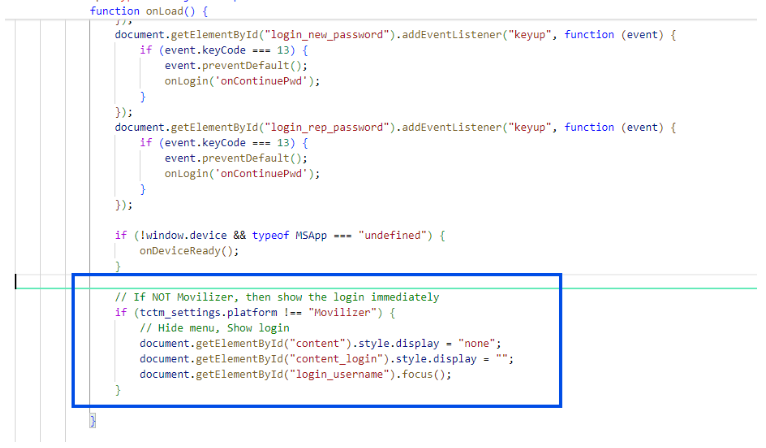
Remove this section of code so that the standard PreBilt login menu is not displayed:
```
// If NOT Movilizer, then shor the login immediately
if (tctm_settings.platform !== "Movilizer") {
//Hide menu, Show login
document.getElementByID("content").style.display = "none";
document.getElementByID("content_login").style.display = "";
document.getElementByID("login_username").focus();
}
```
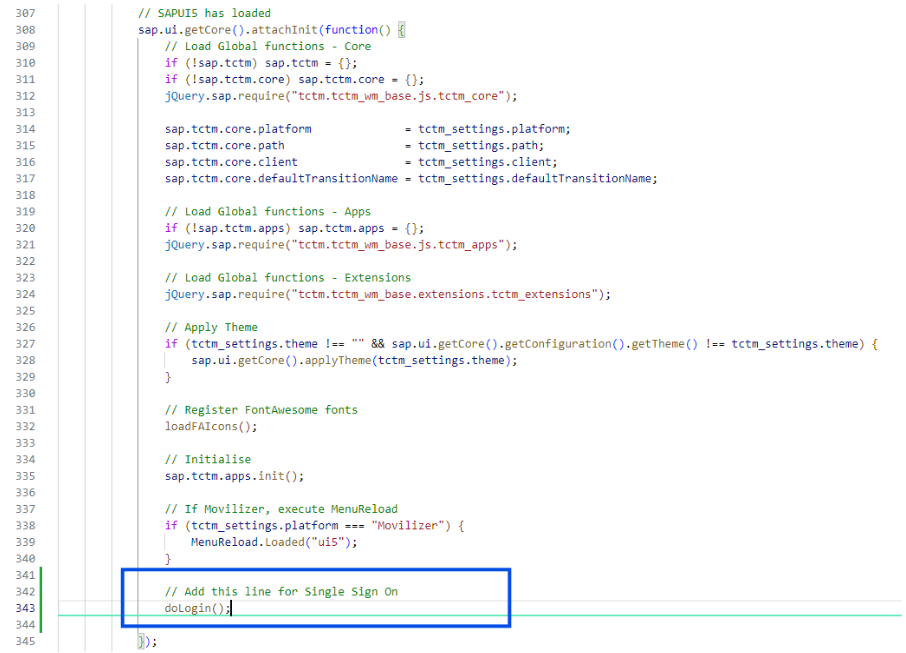
Add a call to doLogin(). This will load the main menu immediately as the user has been logged in via Single Sign On by this point:
### Changes to tctm\_apps.js
Logging out of the application should be handled in the logout function in tctm\_apps.js. This can vary based on the Single Sign On provider. As an example, when using Microsoft Entra a redirect to the Entra sign out page can be used. This URL should contain the actual tenant id.
### Changes to tctm\_settings.js file
As with the Hosted UI deployment, you need to edit the "tctm\_settings.js" file before you upload into SAP.
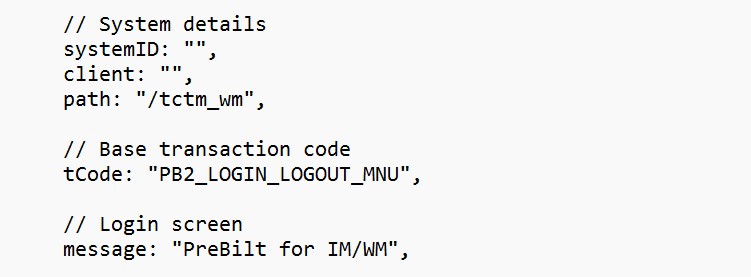
Set the path in the `tctm_settings.js` file (found in the "js" folder) to be a relative URL. This means the URL will be correct throughout the SAP landscape. Replace the given path URL with the relative ICF service that has already been created. e.g. "/tctm\_wm".
The PreBilt transaction to be used for the login should also be updated from the supplied "*PB2\_LOGIN\_LOGOUT\_MNU*" to the proposed client transaction - typically the "*PB2*" prefix is replaced with a client specific code. See the page for [Transaction codes](/prebilt-for-pm/configuration-guide/transaction-codes.md) in the Configuration Guide section.
Blank out the system ID and the client values as shown.
No need to edit the screen message as this will not be seen.
## ICF service changes
The `tctm_wm` ICF service is configured by default to use “Alternative Logon Procedure”. This should be changed to “Standard” to enable Single Sign On. This is typically done by copying the node to the customer namespace. The path in `tctm_settings.js` should be changed to point to this new ICF node.
## Deployment
### Access the upload program
* Log into SAP GUI
* Navigate to transaction *SE38*
* Enter program name: /UI5/UI5\_REPOSITORY\_LOAD
* Click 'Execute' (F8)
### Configure upload parameters
On the selection screen, enter:
* Name of the BSP Application: Your application name, `ZTCTM_WM_UI`
* Description: Brief description of your application
* Package: The transport package, usually `ZTCTM_WM`
* Workbench Request: Your transport request number
* External Codepage: Blank or UTF-8 (typically)
* Folder with Application Data: Browse to the local folder you have prepared with the front end files, typically `TCTM_WM_UI`
### Execute the upload
Review all parameters and press 'Execute' (F8). The program will:
* Create the BSP application if it doesn't exist
* Upload all files from your local folder
* Register the application in the SAP repository
### Verify the upload
* Go to transaction *SE80*
* Select "**BSP Application**" from the dropdown
* Enter your BSP application name
* Check that all files are uploaded correctly
## Test Your Application
* Navigate to transaction *SICF*
* Find your service under: sap/bc/ui5\_ui5/sap/ztctm\_wm\_ui
* Right-click and select "Test Service"
* Your Fiori app should open in a browser
## Testing & Troubleshooting
PreBilt uses the existing Single Sign On settings configured in SAP for web applications. The existing setup can be tested and inspected by running an existing web application such as Fiori Launchpad. Single Sign On is a broad term that covers many technologies and as such can vary from customer to customer.
### Checking Customer-Specific Settings in SICF
Accessing Fiori Launchpad Configuration:
1. Navigate to SICF
* Enter transaction code: *SICF*
* This opens the HTTP Service Hierarchy Maintenance
2. Locate Fiori Launchpad Service
* Navigate to: /sap/bc/ui2/flp
* Or search using Ctrl+F for "flp"
* The main Fiori Launchpad service node
3. Check service configuration
* Right-click on the service node
* Select "Display Service"
* Review the configuration tabs
### Key Configuration Areas to Check
#### Logon Data Tab
This tab reveals the authentication method:
* Procedure: Shows active authentication method
* Standard SAP Logon
* Alternative Logon Procedure
* SSO Authentication
* Security Requirement: SSL requirements
* Logon Procedure List: Priority of authentication methods
Security Requirements
* SSL: Whether HTTPS is mandatory
* Client Certificate: Certificate requirements
* Standard/Service User: Default user configurations
Error Pages Tab
* Custom error pages for authentication failures
* Redirect URLs for SSO scenarios
* Customer-specific messaging
#### Handler List Tab
Check for custom handlers:
* CL\_HTTP\_EXT\_SAML2 - SAML authentication
* CL\_HTTP\_EXT\_KERBEROS - Kerberos/SPNEGO
* Custom handler classes - Customer-specific implementations
### Identifying Customer-Specific Configurations
#### System-Wide Settings
Check these transactions for global SSO configuration:
1. SAML2 - SAML 2.0 Configuration
* Local Provider settings
* Trusted Providers
* Identity Provider connections
2. STRUST - Trust Manager
* SSL certificates
* Certificate-based authentication
* PSE management
3. SICF\_SESSIONS - Session Management
* Session timeout settings
* Cookie configurations
* Security session parameters
4. SSO2 - Generate SAP Logon Ticket
* Ticket validity
* System PSE
* Access control lists
#### Common Customer Variations
1. Multi-Factor Authentication
* Additional authentication steps
* Integration with MFA providers
* Custom challenge handlers
2. Session Management
* Timeout variations
* Re-authentication requirements
* Session persistence settings
3. URL Parameters
* Custom URL parameters for SSO
* Deep linking configurations
* Target system parameters
4. Browser Requirements
* Specific browser configurations
* Cookie settings
* JavaScript requirements
### Troubleshooting Tips
#### Check Authentication Flow
1. Enable HTTP trace in *SICF*
2. Review ICM logs (SMICM)
3. Check security audit log (*SM20*)
4. Review system log (*SM21*)
#### Testing Authentication
1. Use SICF "Test Service" with different browsers
2. Check with and without existing sessions
3. Test from different network zones
4. Validate with various user types
Remember that each implementation can be unique based on their security requirements, existing infrastructure, and compliance needs. Always document findings and coordinate with the security team when making changes to authentication configurations.