> For the complete documentation index, see [llms.txt](https://docs.theconfigteam.com/llms.txt). Markdown versions of documentation pages are available by appending `.md` to page URLs; this page is available as [Markdown](https://docs.theconfigteam.com/prebilt-for-pm/installation-guide/frontend-preparation/prebilt-apk-builder.md).
# PreBilt APK Builder
{% hint style="danger" %}
**Note**
Only authenticated users can proceed with the APK Builder.
{% endhint %}
Access the online APK Builder [here](https://apkbuilder.theconfigteam.com/).
When you visit the APK Builder, you'll be greeted with a simple Sign In screen.
1. Click Sign in.
2. Authenticate using your work email via Microsoft SSO.
3. Once authenticated, you'll be taken to the APK Builder’s main interface.
## ZIP file preparation
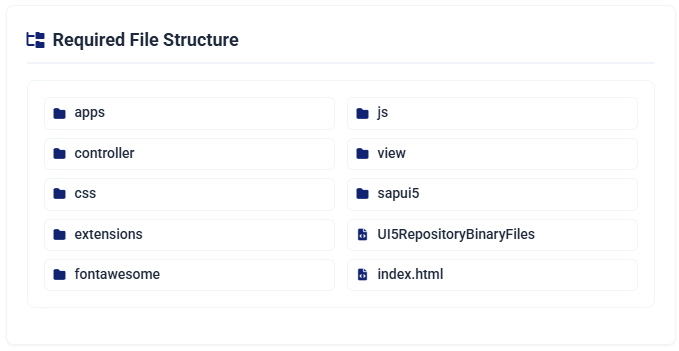
In order to create an APK using the TCT APK Builder you need to create a ZIP file with the frontend and supporting files supplied by TCT. The ZIP file MUST not contain any top-level folder - only the folders shown below.
{% hint style="info" %}
**Note**
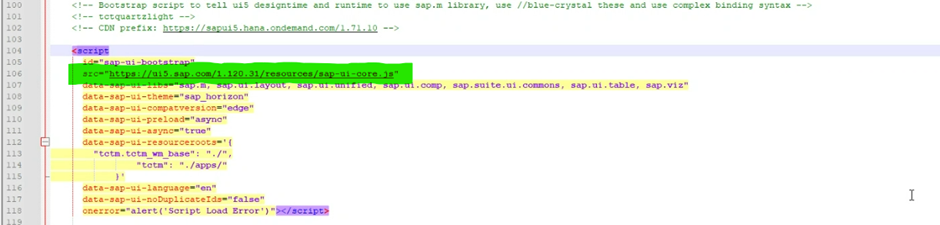
As standard we supply a UI5 library embedded in the APK files. If you want to use the UI files from SAP, you can remove the “sapui5” folder but you will then need to edit the “index.html” file to point to the appropriate SAP URL as shown below, for example.
{% endhint %}
## Upload ZIP file
Upload the ZIP file,, which will validate the contents, and then continue with the configuration setup.
## Configuration setup
Configure your APK build settings. This screen is split into four key sections.
### 1. Appearance configuration
Customize how your APK will look and behave visually.
| Field | Description |
| ---------------- | --------------------------------------------------------------------------------------------------------------------------------------- |
| Environment | Choose from Development, QA, or Production. This choice alters the APK icon to visually distinguish environments (e.g., a “DEV” badge). |
| APK Display Name | Default is PreBilt. You can add a suffix like PreBilt Dev or PreBilt QAS. Leave blank if no suffix is needed. |
### 2. Android configuration
This is where you configure Android-specific settings.
| Field | Description |
| ----------- | -------------------------------------------------------------------------------------------------------- |
| APK Name | Starts with com. (e.g., com.prebilt.partnername.systemtype). Customize based on the project or customer. |
| APK Version | Set the version (e.g., 1.0.0, 1.0.1). Increment this with every update. |
{% hint style="info" %}
**Note**
The prefix "com." is mandatory for Android to recognize the package.
{% endhint %}
### 3. SAP configuration
Connect your APK to the correct SAP backend.
| Field | Description |
| ---------------- | -------------------------------------------------------------------------------------------------------------------------------------------------- |
| SAP Host | Full SAP system URL (e.g., ) |
| SAP ID | Your SAP System ID (e.g., CE1, CE2) |
| SAP Client | SAP client number (e.g., 100, 200) |
| Base Transaction | Enter the PreBilt app transaction that will be used to control login/logout, e.g. XYZ\_LOGIN\_LOGOUT\_MNU. |
| Build Mode | Choose either “Release” or “Debug” mode. Usually “Release” will be the required mode unless there is a specific requirement for a “Debug” version. |
{% hint style="info" %}
**Note**
The SAP Host string must end in “/tctm\_wm” after the port number.
{% endhint %}
### 4. Security configuration
This controls entries to support both HTTP and HTTPS connections.
| Field | Description |
| ----------------------- | ------------------------------------------- |
| Allow Mixed Content | If only HTTPS is allowed, then select “No”. |
| Allow Cleartext Traffic | If only HTTPS is allowed, then select “No”. |
## Build and download
1\. Click the Build button.
2\. The build process starts and usually takes 3–5 minutes.
3\. Once completed, you’ll see a “APK Built” message with a Download button.
4\. Click it to download the APK directly to your Downloads folder.
5\. Rename the APK file is required, by default it will be created as “Prebilt”, with the suffix if used, and the version number.
Once the APK file is generated it can be deployed to the relevant devices directly or via some suitable MDM application.
## Pro-Tips for the APK Builder
{% hint style="info" %}
**Note**
* Always use a consistent APK naming convention from the start of the project – plan for the different environments that with be used: DEV, QAS, PROD, etc. This is not just for clarity but also because some clients have app managing software that needs to recognize that the “package” is already loaded and just needs an upgrade.
* E.g., com.prebilt.client.dev
* Our suggestion is “com.prebilt” followed by “client name/code” followed by the “system type”.
* Versioning helps manage deployments and is needed to identify that an APK file is a newer version — always increment by one for each new version within each particular system.
* Use the correct environment-based icons to avoid confusion across systems.
* Make use of the suffix, in particular for the DEV and QAS systems, so that the applications don’t all just say “PreBilt”.
* Double-check the SAP Host URL for typos — it must be accurate, and it must also end in “/tctm\_wm” after the port number.
* E.g.,
{% endhint %}