> For the complete documentation index, see [llms.txt](https://docs.theconfigteam.com/llms.txt). Markdown versions of documentation pages are available by appending `.md` to page URLs; this page is available as [Markdown](https://docs.theconfigteam.com/prebilt-for-pm/installation-guide/frontend-preparation/hosted-ui-deployment.md).
# Hosted UI deployment
## System requirements
You will need:
1. ZIP file containing the frontend and user interface files (E.g., wm\_tctm\_base.zip).
2. Access to create ICF services in transaction SICF.
3. A service user to assign to ICF services.
4. Access to run program `/UI5/UI5_REPOSITORY_LOAD.`
5. A workbench transport.
## Change SAP GUI security settings
{% hint style="info" %}
**Note**
This step is optional but without it you will need to accept each file via a dialog box when uploading the application assets to the SAP system.
{% endhint %}
Run SAP GUI Options program and open the **Security Configuration** option:
Change the Default Action to **Allow,** otherwise you will be prompted to accept every file being uploaded!
Restart SAP GUI if necessary.
## File preparation
### Unzip the UI file
Unzip the relevant UI file onto your local machine.
{% hint style="info" %}
**Note**
It is recommended to unzip into a non OneDrive location on your local machine in order to avoid sync'ing issues and slower upload times.
{% endhint %}
### Update the tctm\_settings.js file
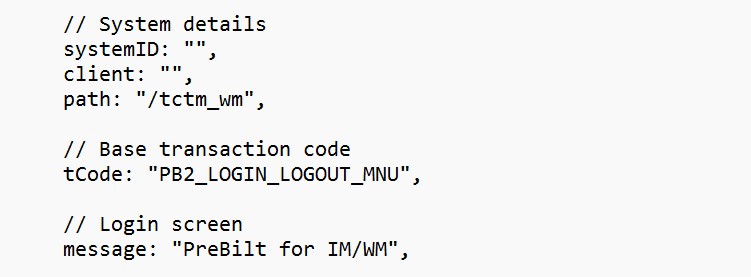
Before you upload the files into SAP you should set the path in the `tctm_settings.js` file (found in the "js" folder) to be a relative URL. This means the URL will be correct throughout the SAP landscape. Replace the given path URL with the relative ICF service that has already been created. e.g. "/tctm\_wm".
The PreBilt transaction to be used for the login should also be updated from the supplied "*PB2\_LOGIN\_LOGOUT\_MNU*" to the proposed client transaction - typically the "*PB2*" prefix is replaced with a client specific code. See the page for [Transaction codes](/prebilt-for-pm/configuration-guide/transaction-codes.md) in the Configuration Guide section.
Blank out the system ID and the client values as shown.
Finally update the screen message if it is required.
## SAP upload and ICF setup
### Upload the user interface
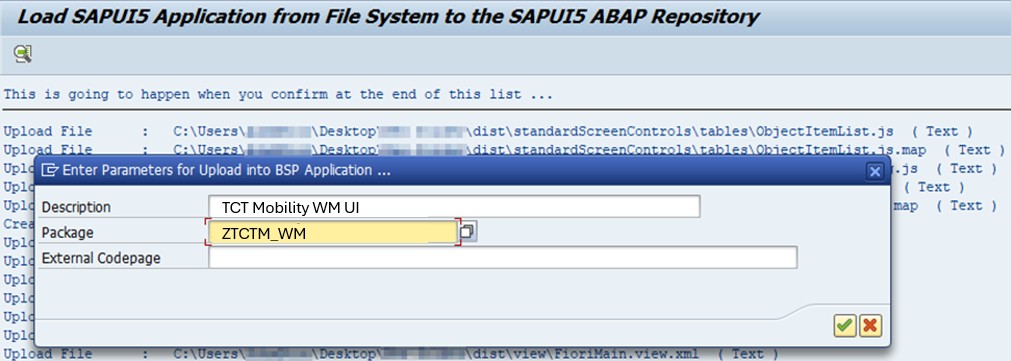
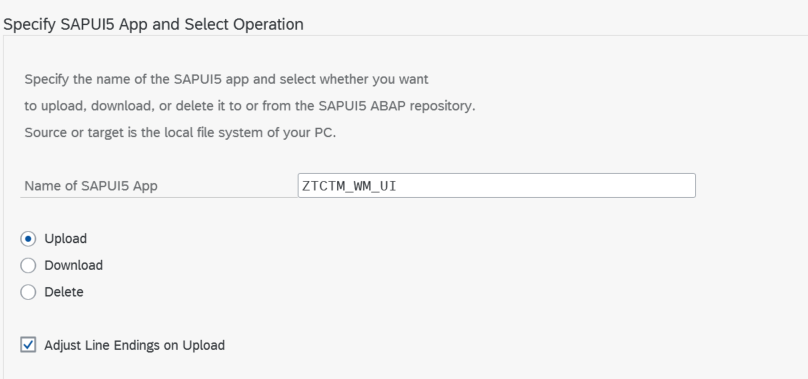
In transaction *SE38* run program `/UI5/UI5_REPOSITORY_LOAD` and enter the name **ZTCTM\_WM\_UI**.
Execute the program.
The program will open a dialog. Navigate to the newly unzipped folder and select it.
Once the validation is complete, navigate to the bottom and click the **Upload** button.
Enter the **Description** and **Package** fields**,** leave the **External Codepage** option blank.
You will then be prompted to enter a Workbench transport.
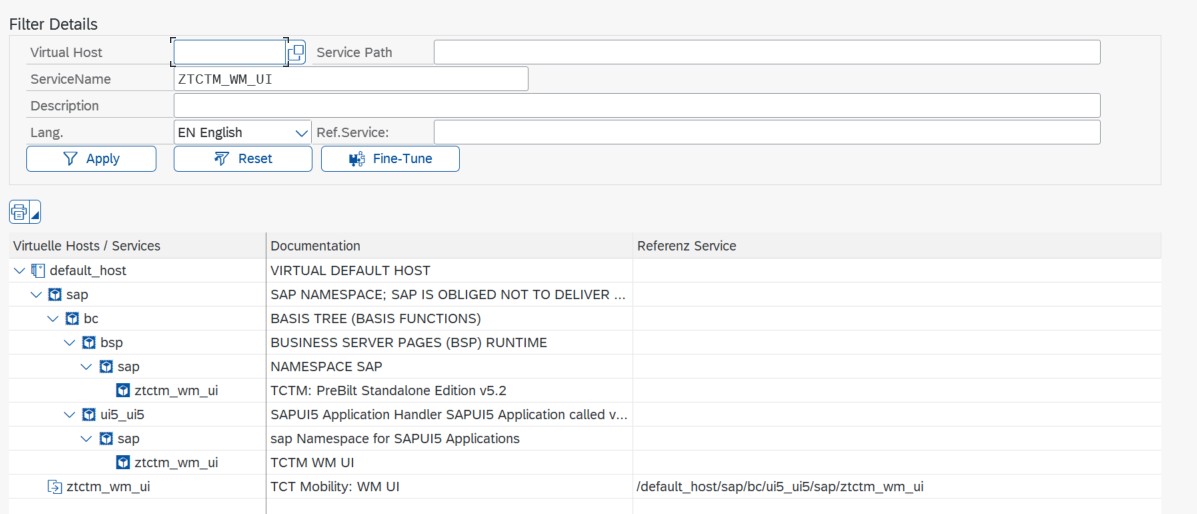
Once finished, the program will have created a BSP Application and two corresponding ICF entries:
### Create a new node for the frontend UI
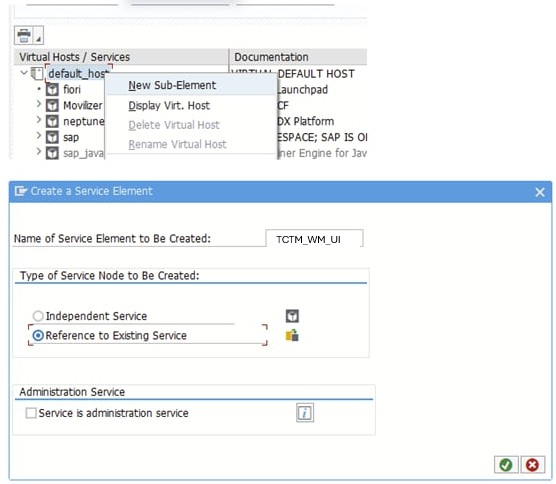
Right click **default\_host** and select **New Sub-Element**.
The **Name of Service Element to Be Created** should be:
```
tctm_wm_ui
```
You should create the new service element with **Reference to Existing Service** checked.
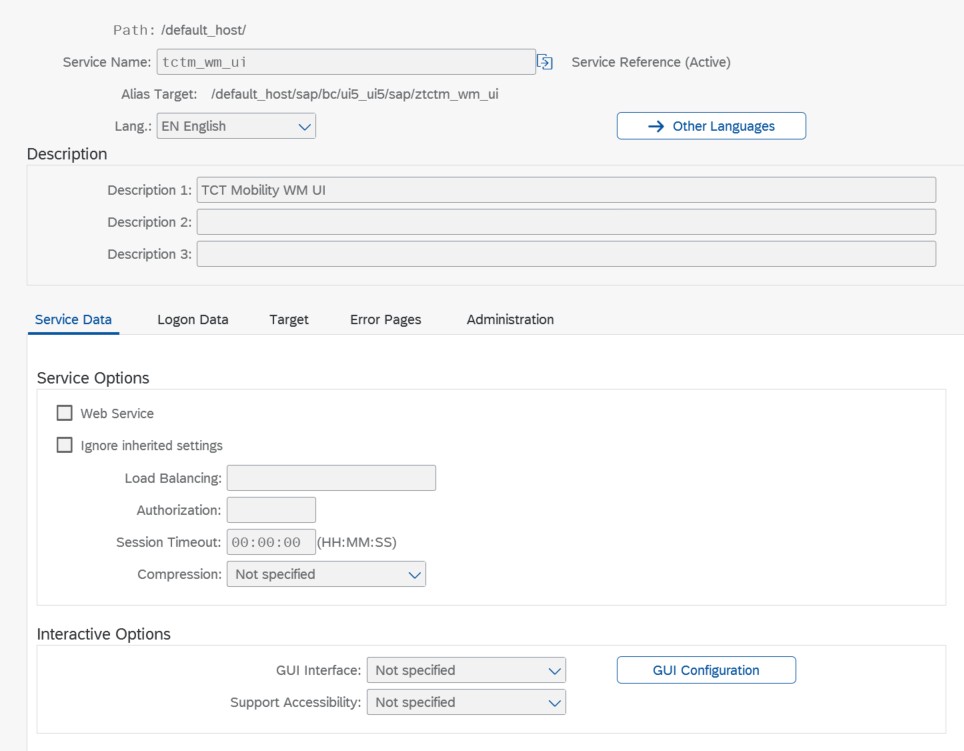
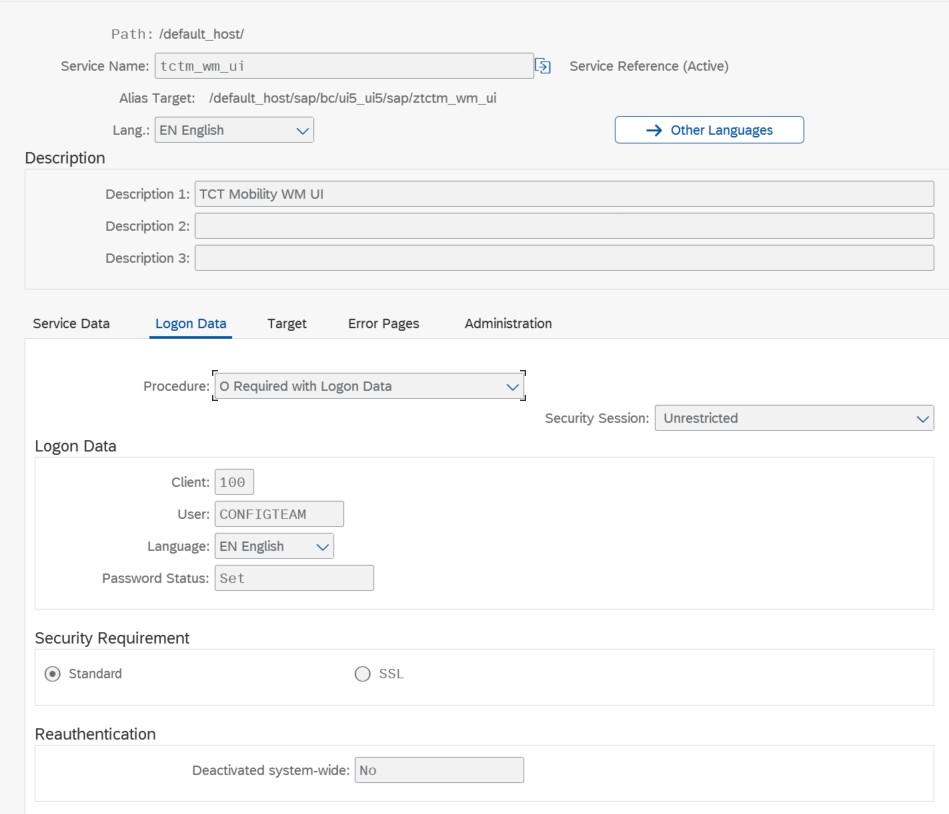
Create the service and add a description such as "TCT Mobility WM UI" see the screenshot below.
Goto the Logon tab and enter the Service user details as setup in your SAP system.
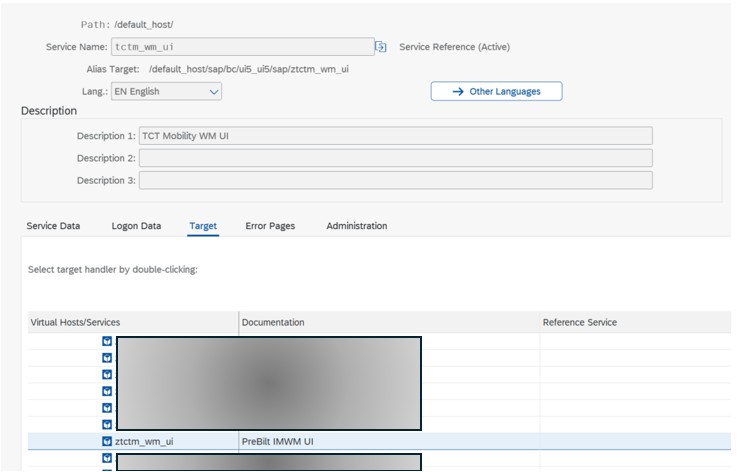
Goto the Target tab and set the reference to the ICF service created by the original upload, e.g. "ztctm\_wm\_ui".
Upon saving, assign the package. You will then be prompted to enter a Workbench transport.
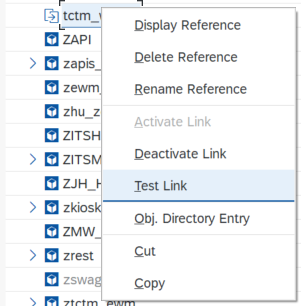
When complete, right click **tctm\_wm\_ui** and click **Activate Link**.
{% hint style="info" %}
**Note**
Ensure that all the services are fully activated in all required environments and that the Service User is also configured in all environments and clients throughout the SAP system landscape where PreBilt will be required.
{% endhint %}
## Launch the application
To launch the application right-click on the SICF service and select "Test Link".
The URL used by this service can now be packaged up in a PWA for deployment to devices.
{% hint style="info" %}
**Note**
This may launch the HTTP version of the URL rather than HTTPS. HTTPS is preferred and required for all functionality to work as expected. If the URL does not launch correctly, check that the correct port is being used for HTTP or HTTPS.
{% endhint %}
.png)
.png)
.png)