> For the complete documentation index, see [llms.txt](https://docs.theconfigteam.com/llms.txt). Markdown versions of documentation pages are available by appending `.md` to page URLs; this page is available as [Markdown](https://docs.theconfigteam.com/prebilt-for-im-wm-strm/im-multi-bin-management/im-multi-bin-management-framework/user-guides.md).
# User Guides
{% hint style="info" %}
**Note**
IM Multi Bin Management comes with several supplied SAP transactions (within the PreBilt namespace) for managing the stock and bins.
{% endhint %}
## Maintain bins
The display and maintenance of IM bin stock can be accessed either as part of the main cluster transaction */TCTM/IMB\_CFG* or using transaction */TCTM/IMB\_LAGP*.
The bins are maintained by plant.
Bins can be flagged for putaway or removal blocks to prevent them being considered for certain processes.
Verification fields and sort sequences can be used for optimization of workflow.
Bins can also be loaded via the [Inventory Upload](/prebilt-for-im-wm-strm/im-multi-bin-management/im-multi-bin-management-framework/user-guides.md#load-initial-inventory) transaction.
## Display and maintain IM bin stock
The display and maintenance of IM bin stock can be accessed in several ways, either as part of the main cluster transaction */TCTM/IMB\_CFG* or using any of these other transactions: */TCTM/IMB\_LQUA*, */TCTM/IMB\_STK,* */TCTM/IMB\_STK\_EDIT*.
{% hint style="warning" %}
Warning
Entries in the stock table should only be edited if a discrepancy is found between the IM stock in the storage location and IM Multi Bin Management stocks, as any changes made in these transactions will not be reflected at the IM storage location level. The reason for the discrepancy should be investigated.
{% endhint %}
### Maintain stock
Using */TCTM/IMB\_CFG*, the user selects the plant required and double clicks ‘Maintain Stock’ from the expanded left-hand menu. Running transaction */TCTM/IMB\_LQUA*, generates the same display for all plants.
This provides a maintainable view of the current IM bin stock levels held.
To enter a new value, the user selects the ‘**Display / Change**’ icon () and then selects the ‘**New Entries**’ option.
When all required values have been updated, the user selects ‘**Save**’.
{% hint style="info" %}
**Note**
This function to add an individual stock record should only be used if a known difference has occurred. If the relevant business processes have been followed, there should not be a requirement to adjust the stocks in this way.
{% endhint %}
### Display stock
The transaction */TCTM/IMB\_STK* is used for displaying stock only. No editing can be carried out within it.
The user enters any selection criteria needed to restrict the search and presses ‘**Execute**’.
The data will be displayed and can be sorted, summed, or extracted for further data analysis. There is also a refresh option so that the transaction does not need to re-run to update the report.
### Edit stock
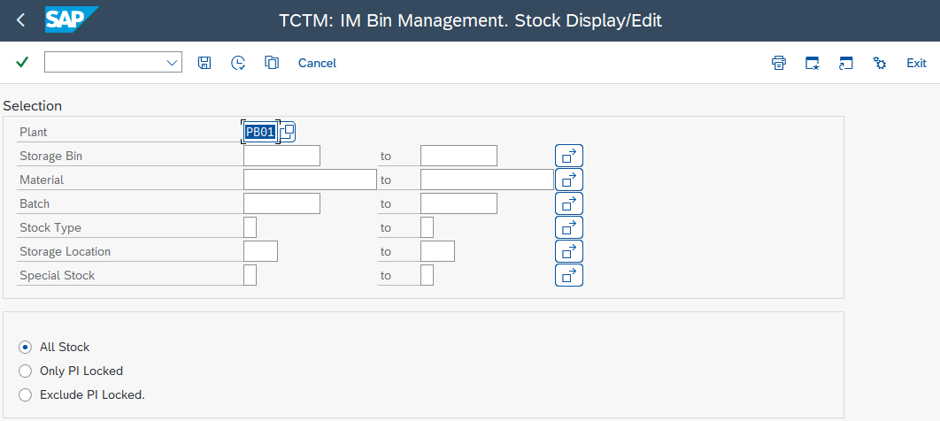
The transaction */TCTM/IMB\_STK\_EDIT* allows stock to be displayed and the entries edited.
The user enters any selection criteria needed to restrict the search and presses ‘**Execute**’.
The data will be displayed and can be sorted, summed, or extracted for further data analysis.
Any of the details in the white fields can be changed and saved.
To add a new entry, the user presses the ‘**Create**’ option found in the ‘**More**’ menu or by pressing Shift+F6.
The user enters all required data and presses ‘**Save**’.
{% hint style="info" %}
**Note**
The quantity should be entered in the base unit of measure as this is what is stored in the IM Multi Bin tables.
{% endhint %}
## Compare stock inventory
The IM Bin stock can be compared to the total IM book stock in transaction */TCTM/IMB\_STK\_COMP*.
This transaction is used to reconcile stock held in the IM storage bins with Inventory stock in SAP.
Both positive and negative stock differences are displayed in red. However, where there is more stock in the bins than in the IM storage location, the figure in the ‘Difference’ column will be displayed with a minus sign.
The columns are calculated as follows:
* IM Quantity – Total quantity in the storage location at Inventory Management level in standard SAP.
* Bins Quantity – Total quantity in the IM bins.
* Difference – IM Quantity minus the Bins Quantity.
* Lost\&Found – Quantity within the Bins Quantity that is showing in bin ‘LOST\&FOUND’.
Highlighting a row with a difference and selecting the ‘**Update Lost & Found**’ button writes the opposite quantity of the stock into the ‘LOST\&FOUND’ bin in the IM Multi Bin Management tables. i.e. a negative quantity will be written on as a positive quantity and vice versa. This ensures that the IM Multi Bin Management and IM quantities are aligned. This would then be investigated to validate why there was a difference.
## Inventory upload
When IM Multi Bin is first setup on an existing storage location it will be necessary to populate the IM Multi Bin stock table with the initial stock levels. This can be done via a spreadsheet upload using SAP transaction */TCTM/IMB\_STK\_UPLOAD*.
Use either an Excel worksheet or CSV file with the following columns in order and use row one for the titles which will be ignored:
* Plant
* Storage Bin
* Material
* Storage Location
* Batch
* Stock Status
* Special Stock Indicator
* Special Stock Number
* Goods Receipt Date
* Quantity (in base unit of measure)
Select the file to be uploaded and choose the appropriate option with regards to stock and bin creation before pressing '**Execute**'.
Once the file data has been validated the results will be displayed in the ALV screen.
Then select all the entries you want to upload and press the '**Upload Selected Data**' button to perform the data upload.
{% hint style="info" %}
**Note**
Whilst this is essentially a stock upload program it can be used to create the IM bins required as well.
{% endhint %}