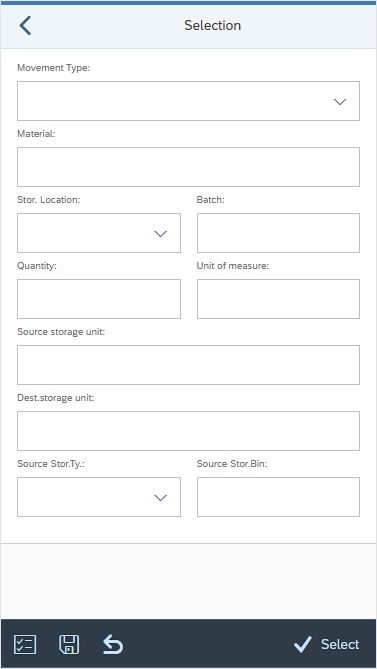
| Configuration element | Available structures/fields |
|---|---|
| SELECT_OPTS | Fields: BATCH or CHARG - SAP batch number PLANT or WERKS - Plants STORE_LOC or LGORT - Storage locations ST_TYPE_S - Source storage type ST_TYPE_D - Destination storage type ST_BIN_S - Source storage bin ST_BIN_D - Destination storage bin ST_BIN_S_SYS - System guided source bin selection ST_BIN_D_SYS - System guided destination bin selection ST_STATUS or BESTQ - Stock status SP_STOCK or SOBKZ – Special stock type SP_STOCK_NUM or SONUM – Special stock number VLENR - Source storage unit number NLENR - Destination storage unit number QUANTITY - Quantity to be moved UOM - Unit of measure CONF_IMM - Confirm immediately flag |
| SELECT_OPTS_ACTIONS | BACK - back to previous screen. CLEAR_INPUT - clear all input fields. VAR_CHOOSE – select from saved variants. VAR_SAVE – save the selection entries as a variant. SELECT – proceed to next screen. |
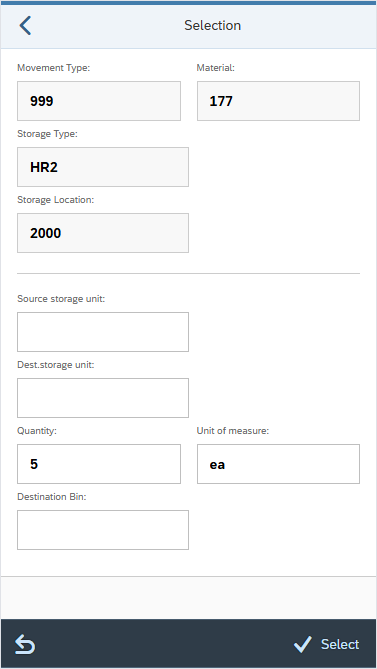
| Configuration element | Available structures/fields (prefix) |
|---|---|
| INPUT_QUANT_DEST_DETAIL | Primary fields: MOVE_TYPE - WM movement type BATCH or CHARG - SAP batch number PLANT or WERKS - Plants STORE_LOC or LGORT - Storage locations ST_TYPE_S - Source storage type ST_TYPE_D - Destination storage type ST_BIN_S - Source storage bin ST_BIN_D - Destination storage bin ST_BIN_S_SYS - System guided source bin selection ST_BIN_D_SYS - System guided destination bin selection ST_STATUS or BESTQ - Stock status SP_STOCK or SOBKZ – Special stock type SP_STOCK_NUM or SONUM – Special stock number VLENR - Source storage unit number NLENR - Destination storage unit number QUANTITY_IN - Quantity to be moved UOM - Unit of measure CONF_IMM - Confirm immediately flag Secondary: LQUA (LQUA), /TCTM/MAKT (MAKT), /TCTM/MARA (MARA), /TCTM/MARC (MARC), /TCTM/MARD (MARD), /TCTM/MLGN (MLGN) |
| INPUT_QUANT_DEST_ACTIONS | BACK - back to previous screen. CLEAR_INPUT - clear all input fields. SELECT – proceed to next screen. |
| Configuration element | Available structures |
|---|---|
| FE_APP | Frontend class to use in running the transaction. Reference to the platform specific frontend application that should be used to run the transaction. Included in the App Master Data file supplied for setting up the initial transactions. |
| CREATE_MODE | Allows transfer orders to be created for different types of stock in the warehouse - quants, storage units or handling units. For quant processing (as opposed to storage unit processing), CREATE_MODE = QUANT. |
| SUPPRESS_SUCCESS | Allows success messages to be suppressed. If toggle = ON, success messages are suppressed. If toggle = OFF, success messages are not suppressed. |
| LOCK_LEVEL | Configure app to lock delivery data during processing at either the header level or item level. Valid values: ‘HEADER’ will lock the delivery when selecting directly from the selection screen, or from the ‘List OBD’ screen. ‘ITEM’ will lock the delivery item when selecting an item from the delivery list, this will enable multiple users to pick the same delivery simultaneously. |
| ALLOW_CREATE_TO | Allows transfer order creation. If toggle = ON, the app will allow creation of transfer orders. If toggle = OFF, if trying to create a transfer order, the app will not be able to determine a processing mode. |
| ALLOW_CANCEL_TO | Prompt to allow for cancellation of a transfer order. NOTE - this only applies to transfers orders that the app has just created. If toggle = ON, the user will be prompted as to whether they want to cancel the TO or not. If toggle = OFF, the TO cancellation will not be prompted and the TO will not be cancelled.. |
| ALLOW_CONFIRM_TO | Allows transfer order confirmation. If toggle = ON, the app will allow confirmation of transfer orders that are already created, or created via the app. If toggle = OFF, if searching for transfer orders to confirm, the app will not be able to determine a processing mode. If creating a new transfer order, the app will not allow direct confirmation of that transfer order. |
| UOM_CONVERSION | You can identify and setup the quantity and the UOM fields that should be converted to the alternative UOM. |
| UOM_SEQ | You can create an app transaction specific sequence of UOM types that is different from the global default. |
| PLANT_FILTER | Enables filtering of plants assigned to the warehouse, allowing you to include or exclude specific values in the list view. |
| SLOC_FILTER | This is a possible filter element that can be used, as required, to allow filtering of the storage locations (if these need to be restricted to a subset of locations that are allocated to the PreBilt warehouse). It has been created as an example and can be used or changed as required. It must be used in conjunction with a suitable field class assigned to the field. |
| APP_TEXTS | Defines standard app text to be used in screen headers, buttons etc. |
| TRANS_INFO | Information about the transaction. |
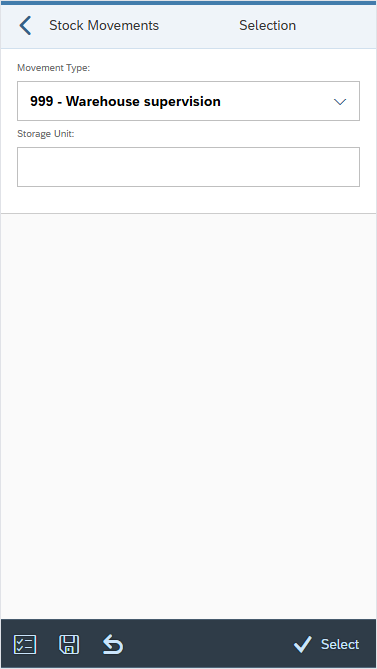
| Configuration element | Available structures/fields |
|---|---|
| SELECT_OPTS | Fields: ST_BIN_D - Destination storage bin ST_BIN_D_SYS - System guided destination bin selection NLENR - Destination storage unit number CONF_IMM - Confirm immediately flag |
| SELECT_OPTS_ACTIONS | BACK - back to previous screen. CLEAR_INPUT - clear all input fields. VAR_CHOOSE – select from saved variants. VAR_SAVE – save the selection entries as a variant. SELECT – proceed to next screen. |
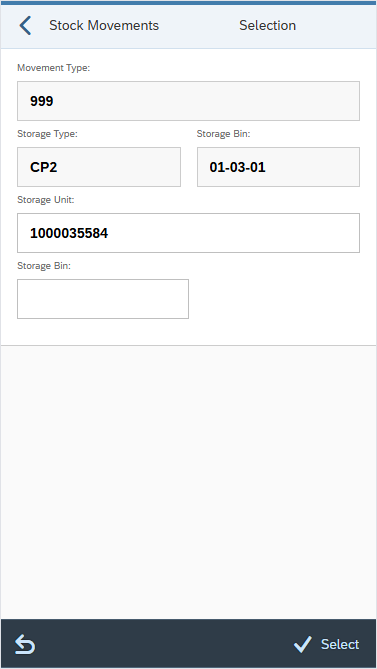
| Configuration element | Available structures/fields (prefix) |
|---|---|
| INPUT_SU_BIN_DETAIL | Primary fields: MOVE_TYPE - WM movement type VLENR - Storage unit number ST_TYPE_D - Destination storage type ST_BIN_D - Destination storage bin ST_BIN_D_SYS - System guided destination bin selection NLENR - Destination storage unit number CONF_IMM - Confirm immediately flag
|
| INPUT_SU_BIN_ACTIONS | BACK - back to previous screen. CLEAR_INPUT - clear all input fields. SELECT – proceed to next screen. |
| Configuration element | Available structures |
|---|---|
| FE_APP | Frontend class to use in running the transaction. Reference to the platform specific frontend application that should be used to run the transaction. Included in the App Master Data file supplied for setting up the initial transactions. |
| CREATE_MODE | Allows transfer orders to be created for different types of stock in the warehouse - quants, storage units or handling units. For storage units, CREATE_MODE = SU. |
| CREATE_SU_CONF_OPEN_TO | During creation of a transfer order for a storage unit or handling unit; if open transfer orders are found for the selected storage unit or handling unit, the user can choose whether to confirm the open transfer order. The option is set with a source and destination storage type, so that the app will only allow confirmation of open transfers for the storage unit or handling unit between specific storage types. In order to support this feature, ALLOW_CONFIRM_TO must have toggle = ON; and the confirmation screens for INPUT_SOURCE_DETAIL and INPUT_DEST_DETAIL must also configured in the AMD. |
| SUPPRESS_SUCCESS | Allows success messages to be suppressed. If toggle = ON, success messages are suppressed. If toggle = OFF, success messages are not suppressed. |
| LOCK_LEVEL | Configure app to lock delivery data during processing at either the header level or item level. Valid values: ‘HEADER’ will lock the delivery when selecting directly from the selection screen, or from the ‘List OBD’ screen. ‘ITEM’ will lock the delivery item when selecting an item from the delivery list, this will enable multiple users to pick the same delivery simultaneously. |
| ALLOW_CREATE_TO | Allows transfer order creation. If toggle = ON, the app will allow creation of transfer orders. If toggle = OFF, if trying to create a transfer order, the app will not be able to determine a processing mode. |
| ALLOW_CANCEL_TO | Prompt to allow for cancellation of a transfer order. NOTE - this only applies to transfers orders that the app has just created. If toggle = ON, the user will be prompted as to whether they want to cancel the TO or not. If toggle = OFF, the TO cancellation will not be prompted and the TO will not be cancelled.. |
| ALLOW_CONFIRM_TO | Activates transfer order confirmation screens. If toggle = ON, the app will allow confirmation of transfer orders that are either already created or created via the app. If toggle = OFF, if searching for transfer orders to confirm, the app will not be able to determine a processing mode. |
| UOM_CONVERSION | You can identify and setup the quantity and the UOM fields that should be converted to the alternative UOM. |
| UOM_SEQ | You can create an app transaction specific sequence of UOM types that is different from the global default. |
| APP_TEXTS | Defines standard app text to be used in screen headers, buttons etc. |
| TRANS_INFO | Information about the transaction. |