
| Configuration element | Available structures/fields |
|---|---|
| SELECT_OPTS | OBJECT_TYPE - Object list from the list OBJECT_TYPE_LIST.
OBJECT_KEY - Document number or in case of the material documents, the material document number followed by year. |
| SELECT_OPTS_ACTIONS | BACK - back to previous screen. CLEAR_INPUT -clear all input fields. VAR_CHOOSE – select saved variants. VAR_SAVE – save the selection entries as a variant. SELECT – proceed to next screen. |


| Configuration element | Available structures |
|---|---|
| LIST_IMAGE_CAP | FILENAME - File name.
USER_NAME - Name of user. CREATED_DATE - Create date. CREATED_TIME - Create time. |
| LIST_IMAGE_CAP_ACTIONS | UPLOAD_IMAGE - Uploading an image from the device folders.
CAPTURE_IMAGE - Opening the camera to take a picture. SAVE - Saving the change. BACK - Back to previous screen. |
| LIST_IMAGE_CAP_HEADER | MAX_IMG - Maximum number of items that can be added by transaction. MIN_IMG - Minimum number of items required by transaction. |
| LIST_IMAGE_CAP_HEADER_EX | n/a |
| Configuration element | Available structures |
|---|---|
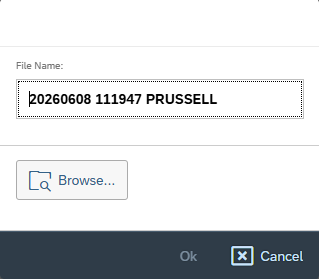
| INPUT_IMAGE_CAP | FILE_NAME_IN - proposed file name for the taken or uploaded picture. |
| INPUT_IMAGE_UPLOAD | FILE_NAME_IN - proposed file name for the taken or uploaded picture. |
| FILE_PREFIX | Prefix to be used for file. |
| Configuration element | Description |
|---|---|
| FE_APP | Frontend class to use in running the transaction. Reference to the platform specific frontend application that should be used to run the transaction. Included in the App Master Data file supplied for setting up the initial transactions. |
| APP_CLASS | Sets the app processing class. |
| APP_TEXTS | Defines standard app text to be used in screen headers, buttons etc. |
| CAPTURE_TYPE | This must be be set to IMAGE. |
| CAPTURE_MODE | This can be one of the following settings: C - Capture image using camera on device U - Upload file from device B - Both |
| MIN_IMAGES | Sets the minimum number of images required. |
| MAX_IMAGES | Sets the maximum number of images required. |
| TRANS_INFO | Information about the transaction. |
| Configuration element | Available structures/fields |
|---|---|
| SELECT_OPTS | OBJECT_TYPE - Object list from the list OBJECT_TYPE_LIST.
OBJECT_KEY - Document number or in case of the material documents, the material document number followed by year. |
| SELECT_OPTS_ACTIONS | BACK - back to previous screen. CLEAR_INPUT -clear all input fields. VAR_CHOOSE – select saved variants. VAR_SAVE – save the selection entries as a variant. SELECT – proceed to next screen. |

| Configuration element | Available structures |
|---|---|
| INPUT_SIGNATURE_CAP | SIGNEE - Signee name. Secondary: /TCTM/TOJTT_S |
| FILE_PREFIX | Prefix for the signature filename. |
| Configuration element | Description |
|---|---|
| FE_APP | Frontend class to use in running the transaction. Reference to the platform specific frontend application that should be used to run the transaction. Included in the App Master Data file supplied for setting up the initial transactions. |
| APP_CLASS | Sets the app processing class. |
| APP_TEXTS | Defines standard app text to be used in screen headers, buttons etc. |
| CAPTURE_TYPE | This must be set to SIGNATURE. |
| TRANS_INFO | Information about the transaction. |