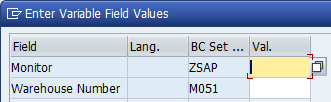
Variable Values
Variable Values
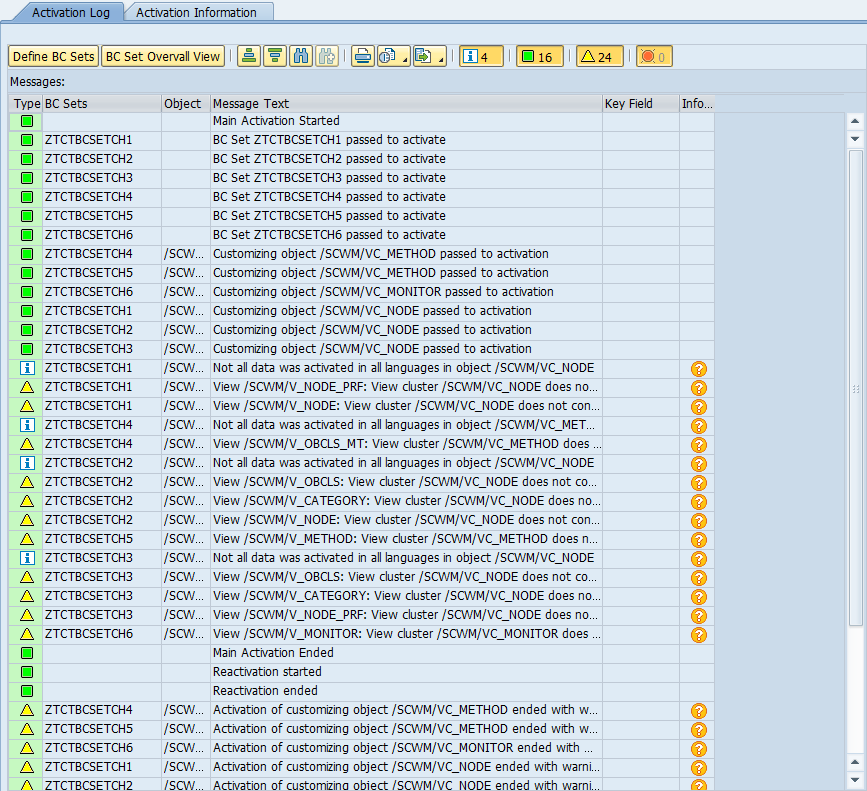
Activation Logs
.png?alt=media)
Define Messaging in Warehouse Monitor Tree
.png?alt=media)
Define Operator Groups
.png?alt=media)
Define Operator Members
.png?alt=media) {% endhint %}
### Operator Messaging Data - /TCTM/EWM\_OMCFG
{% embed url="
{% endhint %}
### Operator Messaging Data - /TCTM/EWM\_OMCFG
{% embed url=".png?alt=media)
Define Messaging Type

Messaging Type – Fields
| Selected Messaging Type | Field Name | Sequence | Field Type | Field Description |
|---|---|---|---|---|
Selected Messaging Type | Field Name | Sequence | Field Type | Field Description |
| ACCIDENT | COMMENTS | 040 | TEXTAREA | Additional comments |
| ACCIDENT | DESCRIPTION | 030 | TEXTAREA | Detailed Description |
| ACCIDENT | LOCATIONS | 020 | SELECT | Location |
| ACCIDENT | REPORT_STATUS | 050 | CHECKBOX | Send me status notifications |
| ACCIDENT | URGENCY | 010 | RADIOBUTTON | Urgency |
| BREAKREQ | COMMENT | 010 | TEXTAREA | Comment |
| CLEANINGRE | COMMENTS | 002 | TEXTAREA | Comments |
| CLEANINGRE | LOCATION | 010 | COMBOBOX | Location |
| OTHER | COMMENT | 010 | TEXTAREA | Details |
| RESOURCE_R | ACTIVITY | 010 | SELECT | Activity |
| RESOURCE_R | COMMENTS | 050 | TEXTAREA | Additional Comments |
| RESOURCE_R | EQUIPMENT | 030 | CHECKBOX | FLT Required |
| RESOURCE_R | EQUIPMENT2 | 035 | CHECKBOX | Supervisor Required |
| RESOURCE_R | EQUIPMENT3 | 040 | CHECKBOX | Workers Required |
| RESOURCE_R | LOCATION | 020 | RADIOBUTTON | Location |

Messaging Type – Fields – Parameters definition
| Selected Messaging Type | Selected Field Name | Field Parameter Type | Param Seq | Field Parameter Value | Translatable Field Parameter Value |
|---|---|---|---|---|---|
Selected Messaging Type | Selected Field Name | Field Parameter Type | Param Seq | Field Parameter Value | Translatable Field Parameter Value |
| ACCIDENT | LOCATIONS | SELECT_ITEM | 001 | AISLE01 | Aisle 01 |
| ACCIDENT | LOCATIONS | SELECT_ITEM | 002 | AISLE02 | Aisle 02 |
| ACCIDENT | LOCATIONS | SELECT_ITEM | 003 | AISLE03 | Aisle 03 |
| ACCIDENT | LOCATIONS | SELECT_ITEM | 004 | AISLE04 | Aisle 04 |
| ACCIDENT | URGENCY | RADIO_BTN_ITEM | 001 | CRITICAL | Critical |
| ACCIDENT | URGENCY | RADIO_BTN_ITEM | 002 | HIGH | High |
| ACCIDENT | URGENCY | RADIO_BTN_ITEM | 003 | NORMAL | Normal |
| ACCIDENT | URGENCY | RADIO_BTN_ITEM | 004 | LOW | Low |
| CLEANINGRE | LOCATION | COMBOBOX_ITEM | 001 | FREEZER | Freezer |
| CLEANINGRE | LOCATION | COMBOBOX_ITEM | 002 | PICKFACE_AMB | Pickface Ambient |
| CLEANINGRE | LOCATION | COMBOBOX_ITEM | 003 | DECON | Deconsolidation Area |
| CLEANINGRE | LOCATION | COMBOBOX_ITEM | 004 | TOILET | Toilets |
| RESOURCE_R | ACTIVITY | SELECT_ITEM | 000 | Picking | Picking |
| RESOURCE_R | ACTIVITY | SELECT_ITEM | 001 | Packing | Packing |
| RESOURCE_R | ACTIVITY | SELECT_ITEM | 002 | Replenishment | Replenishment |
| RESOURCE_R | ACTIVITY | SELECT_ITEM | 003 | Physical Inventory | Physical Inventory |
| RESOURCE_R | EQUIPMENT | SELECT_ITEM | 000 | HHT | Handheld Terminal |
| RESOURCE_R | EQUIPMENT | SELECT_ITEM | 001 | FLT | Forklift Truck |
| RESOURCE_R | EQUIPMENT | SELECT_ITEM | 002 | RT | Reach Truck |
| RESOURCE_R | EQUIPMENT2 | SELECT_ITEM | 000 | HHT | Handheld Terminal |
| RESOURCE_R | EQUIPMENT2 | SELECT_ITEM | 001 | FLT | Forklift Truck |
| RESOURCE_R | EQUIPMENT2 | SELECT_ITEM | 002 | RT | Reach Truck |
| RESOURCE_R | EQUIPMENT3 | SELECT_ITEM | 000 | HHT | Handheld Terminal |
| RESOURCE_R | EQUIPMENT3 | SELECT_ITEM | 001 | FLT | Forklift Truck |
| RESOURCE_R | EQUIPMENT3 | SELECT_ITEM | 002 | RT | Reach Truck |
| RESOURCE_R | LOCATION | RADIO_BTN_ITEM | 020 | Receiving | Receiving Area |
| RESOURCE_R | LOCATION | RADIO_BTN_ITEM | 030 | Dispatch | Dispatch Area |
| RESOURCE_R | LOCATION | RADIO_BTN_ITEM | 040 | Inspection | Inspection Area |
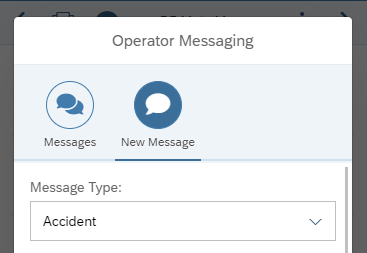
New Message icon

Message Type Drop Down
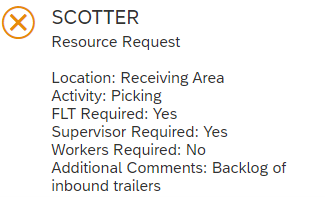
‘Important’ message example
.png?alt=media)
Define Receivers
.png?alt=media)
Assign Receiver to Messaging Type
.png?alt=media)
Fields definition
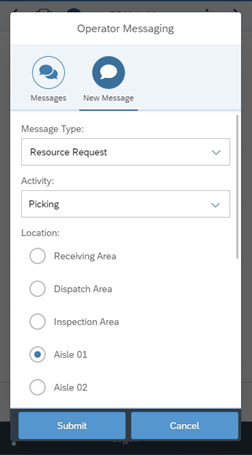
Fields definition in app example
.png?alt=media)
Messaging Type – Fields – Parameters definition
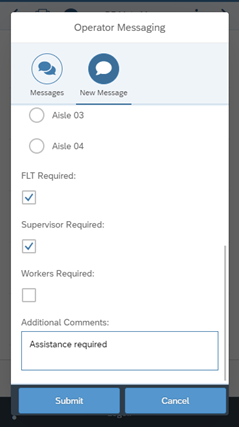
Checkbox in app example
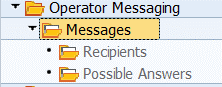
Operator messaging settings
.png?alt=media)
Send message dialog window – Warehouse Monitor
.png?alt=media)
Sent message recipient data – warehouse monitor

In app messaging icon
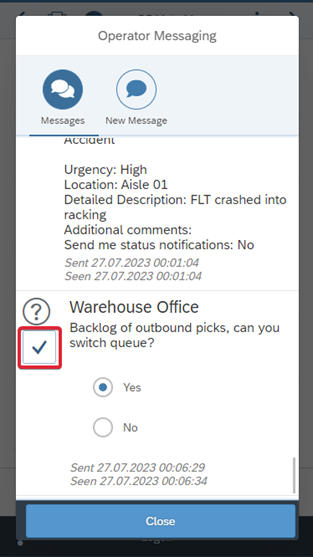
Confirming message response
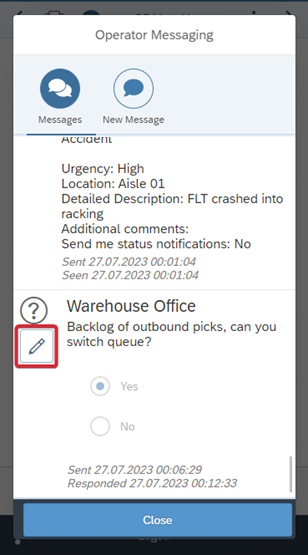
In app confirmed message response & edit icon
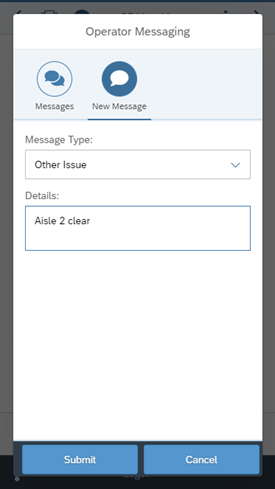
New message in app example

In app message sent confirmation

In app message history